




iPhone WiFi Not Working? Fix It Fast (2026 Guide)
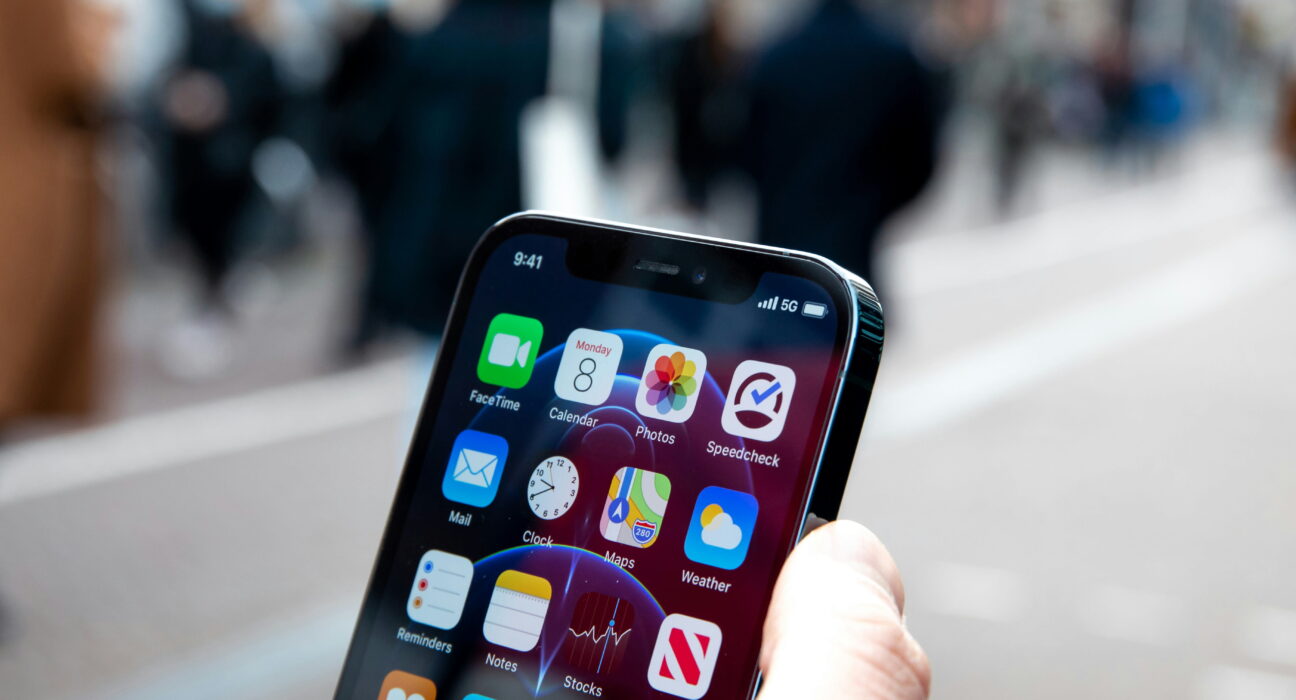
Is your iPhone WiFi not working, dropping the connection, or refusing to load anything at all? It can bring your whole day to a stop, especially when you need to send an email or finish something online right now.
The good news is that most cases come from a weak signal, a router glitch, or a small software bug, not a broken phone. In this guide, you will find quick fixes to try first, plus deeper steps for a connection that keeps failing. By the end, your iPhone should stay connected the way it used to.
Quick Fix: Try This First
Before you try anything else, run through these steps. They solve most cases of iPhone WiFi not working in just a few minutes:
- Turn WiFi off, wait ten seconds, then turn it back on
- Restart your iPhone
- Restart your router
- Forget the network, then reconnect to it
These four steps clear out most small glitches that cause a WiFi connection to drop or fail to load. If your iPhone WiFi is still not working after this, keep reading for the deeper fixes below.
Why Is My iPhone WiFi Not Working?
A few common causes are behind most connection problems. Knowing which one applies to you makes it easier to pick the right fix.
A weak signal. If you are far from your router, or there are walls and other devices in the way, your iPhone can struggle to hold a steady connection, which often shows up as slow speeds or dropped WiFi.
Network glitches. Temporary bugs on your iPhone or your router can cause the connection to disconnect and reconnect over and over, even when the signal itself is strong.
Outdated software. An old iOS version can create connection errors and slower speeds, since Apple often ships WiFi-related fixes in newer updates.
Too many connected devices. A router handling a lot of devices at once can slow down or drop connections for everyone on the network, including your iPhone.
VPN interference. A VPN app can sometimes block or slow your connection, which can look identical to iPhone WiFi not working when the real cause is the VPN itself.
How to Fix iPhone WiFi Not Working
Restart Your iPhone
A simple restart clears temporary bugs and is often enough to fix a WiFi connection on its own.
Forget and Reconnect the Network
Go to Settings > WiFi, tap the info icon next to your network, then choose Forget This Network. Reconnect and enter your password again. This solves most cases where an iPhone will not connect to a network it has used before.
Reset Network Settings
Go to Settings > General > Transfer or Reset iPhone > Reset Network Settings. This clears saved WiFi passwords and settings, so use it when the problem runs deeper than a simple restart. It is one of the most reliable fixes for a stubborn connection.
Update iOS
Go to Settings > General > Software Update and install any update that is waiting. Apple regularly patches WiFi bugs in these releases, so this step alone can solve the problem.
Fix iPhone Connected but No Internet
Sometimes your iPhone shows a WiFi connection, but nothing actually loads. If this happens, try these steps:
- Restart your router
- Reset your network settings
- Check whether your internet provider is having an outage in your area
This combination usually resolves a connected but no internet problem, since the cause is often on the router or provider side rather than the iPhone itself.
iPhone WiFi Not Working at Home vs in Public
Where the problem happens can point you to the real cause. If iPhone WiFi not working only happens on your home network, the router is the more likely culprit, so restarting it or checking its settings should be your first move.
If it happens on multiple networks, including public WiFi at coffee shops or work, the issue is more likely coming from your iPhone itself, which points you toward a network reset or a software update instead. Testing your phone on a second network, like a friend’s hotspot, is a fast way to tell the two apart before you spend time on the wrong fix.
How Router Settings Affect iPhone WiFi
Not every case of iPhone WiFi not working comes from the phone. Router settings like an outdated firmware version, a mismatched WiFi band, or too strict a security setting can all cause connection problems that look like a phone issue at first. Logging into your router’s settings page and checking for a pending firmware update is worth doing before you assume the problem sits with your iPhone. Many routers also let you separate the 2.4GHz and 5GHz bands into their own network names, which can make it easier for your iPhone to connect to the stronger signal in each room of your home.
How to Improve WiFi Speed
Move closer to your router. Distance and walls are some of the biggest reasons a WiFi connection feels slow, so moving to a spot with a clearer line to the router often helps right away.
Restart your router regularly. A quick restart clears temporary bugs on the router side and can fix connection issues that have nothing to do with your iPhone at all.
Avoid overloading your network. Too many devices connected at once can slow everyone down, so disconnecting devices you are not using can free up bandwidth.
Advanced Fixes for Ongoing WiFi Problems
Turn off your VPN. If you use a VPN app, try disabling it and reconnecting to WiFi. Some VPN apps interfere with the WiFi connection in a way that looks like a router or iPhone problem.
Check your router settings. Make sure your router firmware is current and that its WiFi band settings match what your iPhone supports, since a mismatch can cause dropped or failed connections.
Reset all settings. If nothing else works, go to Settings > General > Transfer or Reset iPhone > Reset All Settings. This clears display, privacy, and connectivity settings without deleting your photos or apps.
Daily Tips to Avoid WiFi Issues
- Keep your iPhone updated to the latest iOS version
- Restart your router about once a week
- Avoid relying on weak public WiFi networks
- Limit background apps that use extra data
- Turn off VPN when you do not need it
These habits go a long way toward keeping your iPhone WiFi stable and preventing the problem from coming back.
Common Mistakes That Cause WiFi Problems
Ignoring software updates. Outdated iOS versions often carry bugs that Apple has already fixed in a newer release.
Relying on weak or public networks. Public WiFi is often overloaded and unstable, which can make an iPhone look like it has a connection problem when the network itself is the issue.
Never resetting network settings. Some connection issues run deep enough that only a full network reset will clear them out.
Final Thoughts
An iPhone WiFi not working problem is usually easier to fix than it feels in the moment. Start with the one-minute steps, move on to forgetting and reconnecting the network, and use a network reset if the problem keeps coming back. Keep your iOS and your router updated, and your iPhone WiFi should stay steady for daily use. Try these steps today and get back to a stable connection.
Frequently Asked Questions
Why is my WiFi suddenly not working on my iPhone?
This usually comes down to a network glitch, a weak signal, or a settings issue. Restarting your device and router, toggling Airplane Mode, or resetting network settings clears up most cases.
Does the iPhone 17 Pro Max have WiFi issues?
Some iPhone 17 Pro Max users reported WiFi disconnecting shortly after launch, and Apple addressed part of the issue in an early software update. A smaller number of users have continued to report occasional drops in later updates, so keeping iOS current is the best way to stay ahead of it.
What iPhones should I avoid buying in 2026?
Older models like the iPhone XS, XS Max, and XR no longer receive major iOS updates, so they are worth avoiding if you want current software and full app support. Very old models with small storage and aging batteries are also worth skipping for a reliable daily phone.
Which iPhones may lose support in 2027?
The iPhone 11 series and iPhone SE (2nd generation) are still supported on the current iOS version, but older hardware like this typically loses major update support within the next cycle or two, so expect fewer new features on these models going forward.
Why is my phone suddenly not connecting to WiFi?
This is usually caused by a software glitch, a router issue, or an incorrect setting. Restarting your phone and router, toggling WiFi off and on, and checking Airplane Mode, updates, and VPN settings solves most cases.


