




How to Connect AirPods to iPhone: Complete Setup Guide
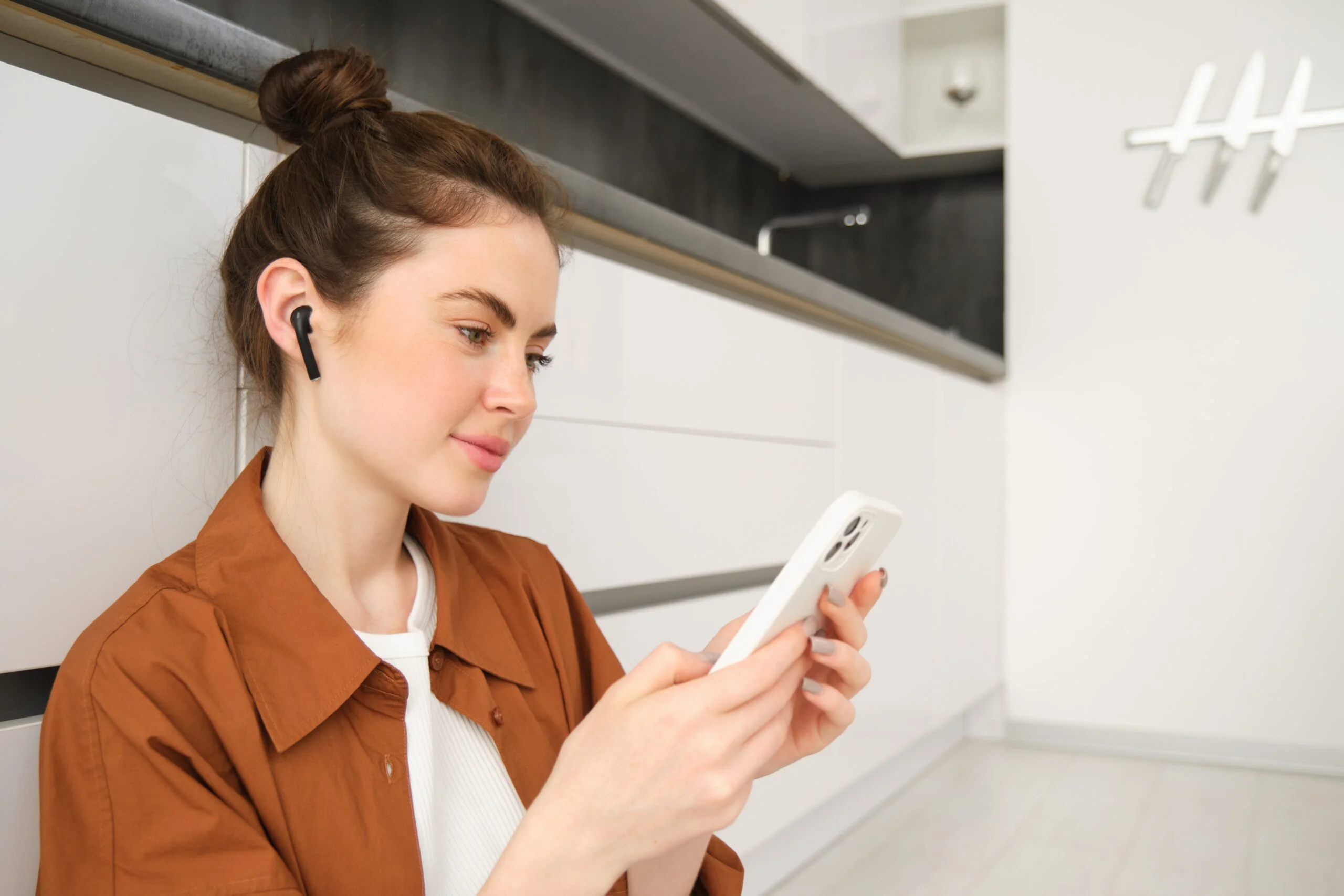
Learning how to connect AirPods to iPhone takes less than a minute once you know the steps. Apple built the pairing process to be automatic, so you do not need any cables, apps, or accounts to set up first.
This guide covers the exact steps for every AirPods model, what to do if the pop-up does not show up, and how to keep your AirPods connected across your other Apple devices once the first pairing is done. Whether you just bought your first pair or you are troubleshooting a connection that stopped working, these steps apply no matter which iPhone or AirPods model you own.
Which AirPods Model Do You Have
All AirPods models pair in a similar way, but the exact steps differ slightly by model. Here are the three main types you might have when learning how to connect AirPods to iPhone.
AirPods 1 through 4: These come in a small white charging case with the earbuds inside. Open the case near your iPhone and a pop-up appears automatically.
AirPods Pro: These use silicone ear tips and a slightly rounder case. The pairing process works the same way as the standard AirPods.
AirPods Max: These are the over-ear headphones that ship in a Smart Case. You pull them out of the case rather than opening a lid, so the process is a bit different, covered below.
How to Connect AirPods to iPhone Automatically
This is the fastest way to pair AirPods and works for every model except AirPods Max. Before you start, make sure Bluetooth is turned on in your iPhone settings.
- Open the AirPods case with the earbuds still inside.
- Hold the open case close to your iPhone.
- Wait for the pairing animation to appear on your screen.
- Tap Connect on the pop-up.
- Follow any additional prompts if they appear.
- Tap Done once setup finishes.
Your AirPods are now paired and will reconnect automatically every time you open the case near your iPhone.
How to Connect AirPods Max
AirPods Max pair a little differently since they do not have a case lid to open near your phone.
Step 1. Remove the AirPods Max from the Smart Case.
Step 2. Hold the headphones close to your iPhone.
Step 3. Wait for the connection pop-up to appear.
Step 4. Tap Connect to pair them.
Step 5. Follow the remaining on-screen instructions to finish.
What to Do if Your AirPods Will Not Connect
Sometimes AirPods do not pair on the first try. Most connection problems have a quick fix, so try these before assuming anything is broken.
Problem 1: The pop-up does not appear. Check that Bluetooth is turned on in Settings. Confirm your AirPods case has enough charge. Move the case closer to your iPhone and try again.
Problem 2: AirPods show up but will not pair. Open Settings, tap Bluetooth, and look for your AirPods in the device list. Tap them to connect manually. If that fails, restart your iPhone and try once more.
Problem 3: The connection keeps dropping. This usually means your AirPods need a quick reset. Place both AirPods back in the case and close the lid. Wait about thirty seconds, then open the case again to reconnect.
Problem 4: AirPods connect, but sound is choppy or delayed. Move closer to your iPhone, since Bluetooth range and walls can weaken the signal. Turn Bluetooth off and back on from Control Center. If the issue continues, forget the device in Bluetooth settings and pair again from scratch.
How to Reset Your AirPods if Problems Continue
If none of the fixes above work, a full reset often solves stubborn pairing issues. Put your AirPods in the case, close the lid, and wait about 30 seconds. Open the lid, then press and hold the button on the back of the case until the light flashes amber, then white. This clears the existing pairing so you can connect them to your iPhone as if they were new.
How to Connect AirPods to Other Apple Devices Automatically
Once your AirPods are paired with your iPhone, they work across your other Apple devices automatically, as long as you are signed in with the same Apple Account everywhere. You will need iOS 10, iPadOS 13, or macOS 10.12 or later on each device.
To connect on another device, open its Bluetooth settings and select your AirPods from the list. Since they are already linked to your Apple Account, you will not need to repeat the full setup process again.
How to Switch AirPods Between Your Devices
If your AirPods are already connected to one Apple device and you want to use them on another, open Control Center on the new device and tap the audio icon. Select your AirPods from the list, and audio will switch over within a few seconds. This works well for moving between an iPhone call and a video on your iPad or Mac without repairing anything.
Tips for a Smoother Connection Every Time
Keep your AirPods case charged, since a low battery can prevent the pairing pop-up from appearing at all. Keep Bluetooth turned on by default rather than toggling it off, since that is what allows the automatic reconnect to work. If you use AirPods with multiple people in your household, check Settings often, since AirPods can sometimes show up as available on a nearby device that is not yours.
Using Siri and Automatic Ear Detection
Once you connect AirPods to iPhone, Siri becomes available hands-free on most models. Say “Hey Siri” or double-tap an AirPods Pro or AirPods 3 stem to ask questions, control music, or send a text without touching your phone. Automatic ear detection also pauses audio the moment you remove one AirPods and resumes when you put it back in, so you never miss a beat during a call or a podcast.
Finding Lost AirPods
If you connect AirPods to iPhone and later misplace them, Find My can help. Open the Find My app, select your AirPods from the device list, and view their last known location on a map. You can also play a sound from either AirPods or the case to help you locate them nearby. This only works if the AirPods were previously paired with your Apple Account, which is another reason to complete the setup right away after buying a new pair.
Buying Tips Before You Connect AirPods to iPhone
If you are shopping for a new pair, check the box for the correct charging case type, since Lightning and USB-C versions are not interchangeable. Confirm the AirPods generation matches what you actually want, since features like spatial audio and adaptive noise control vary between models. Buying from Apple or an authorized retailer also protects your warranty, which matters if you ever need a case or earbud replacement down the line.
Final Thoughts
Now you know how to connect AirPods to iPhone for every model, along with the fixes for the most common pairing problems. The process only takes real setup effort the first time. After that, your AirPods reconnect automatically whenever you open the case near your iPhone, and the same pairing carries over to your other Apple devices without extra steps.
Frequently Asked Questions
Do I need to pair my AirPods every time I use them?
No. You only pair them once. After that, they reconnect automatically whenever you open the case near a signed-in Apple device.
Can I use AirPods with phones that are not iPhones?
Yes. AirPods work with Android and other Bluetooth devices, but you will pair them through standard Bluetooth settings instead of the automatic pop-up, and you will lose Apple-specific features like automatic switching.
How many devices can my AirPods connect to?
AirPods can be linked to any device signed into your Apple Account, and you can switch between them from Control Center without repairing.
What should I do if my AirPods battery drains quickly?
Check battery health in Settings under Bluetooth, tap your AirPods, and review the battery percentage. If it drops unusually fast, a reset or a check with Apple Support can help.
Can I connect AirPods to more than one iPhone at once?
Yes, current iPhones support Audio Sharing, which lets two nearby iPhones play the same audio through two sets of AirPods at once.


