




How to Share Location on iPhone: Step-by-Step Guide
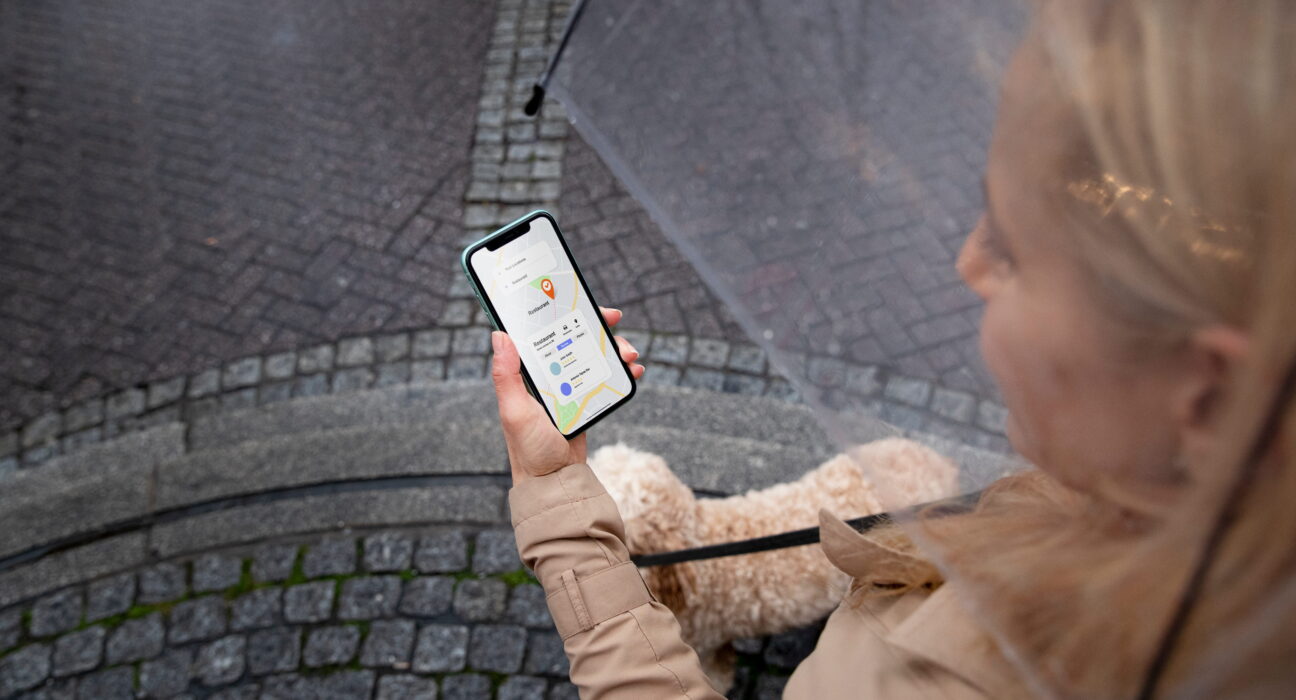
Finding your close friends in crowded places becomes very simple. Learning how to share your location on iPhone helps your family today. This simple guide helps people meet friends after school. You can send your pin location in just two minutes. You will manage privacy settings and map tracking app tools.
Check out Apple online for extra product details right now. Setting up live tracking keeps your family safe every day. You will feel safe walking home during dark night hours. Never worry about getting lost in new crowded city places. Enjoy sharing your real position with your best close friends.
Overview of How to Share Location on iPhone Methods
To share your location on an iPhone, you can use the built-in Find My App or send it directly through a text in the Messages App. You can choose to share your live whereabouts for one hour, until the end of the day, or indefinitely.
Sending live map data keeps family members safe outside the home. People send pin data to find friends inside large parks. Parents track kids during long travel trips across distant cities.
Method 1: Using the Find My App
- Open the Find My app on your iPhone.
- Tap the People tab at the bottom left.
- Tap the Plus (+) button and select Share My Location.
- Type or select the name of your contact, then tap Send.
- Choose how long you want to share (1 Hour, Until End of Day, or Indefinitely).
Method 2: Using the Messages App
- Open an existing chat or start a new text in Messages.
- Tap the Plus (+) button next to the text entry box.
- Tap Location.
- Tap Share and pick your preferred time duration, then tap the Send arrow.
Choosing Your Favorite Location Sharing Tool
When sending your map pin location, pick these primary choices.
- Using built-in Find My tools gives steady location updates. This option updates continuous map positions for long daily trips. Select this choice if you always track close family members.
- Sending map pins inside text messages offers fast access. Friends open your location directly inside active chat message screens. Pick this path for quick casual meetings with close friends.
- Sharing position links through external apps reaches non-Apple devices. Third-party software sends location pins to friends using Android. Choose this method when texting people without Apple products at home.
Main Instructions for Location Sharing
You can share your current location using simple steps.
How to share location on iPhone using Find My App
- Tap the green Find My app on your home screen.
- Tap the People tab icon at the bottom edge of the screen.
- Select how to share location on iPhone permanently from the menu.
- Type the phone number of your close family contact.
- Tap the Send button at the top right of your screen.
- Select the Share Indefinitely option from the pop-up menu list.
How to share location on iPhone using Messages App
- Open the Messages app on your main screen.
- Select an active chat with your close best friend.
- Tap the plus icon located next to the text entry box.
- Click the location tool option inside the pop-up menu list.
- Choose how to share your location on iPhone through the text options.
- Press the blue send arrow to transmit your live pin.
Related Process: How to Turn On Location to Share Location on iPhone
Before sharing your current pin, check the main device location switches.
- Tap the Settings app icon on your device’s home screen.
- Scroll down until you see the privacy and security options menu.
- Tap the location services switch located at the top of the screen.
- Toggle the main location switch to the active green state.
Related Process: How Not to Share Location on iPhone
Stopping location access protects your private home position from others.
- Open the main Settings app from your mobile home screen.
- Scroll down and click on the Privacy & Security options tab.
- Select Location Services and tap the Share My Location option.
- Toggle the Share My Location switch to the off position.
Specific Software Methods and Device Versions
Different system setups require simple steps for sharing map data.
- Learn how to share location on iPhone with new software updates. Open the Settings app and verify location permission toggles stay active. New system layouts place share controls inside main profile tabs.
- Discover how to share location on iPhone with iOS 26 updates. System tools let users share live coordinates inside satellite maps. Select satellite options when walking inside remote mountain forest trails.
- Learn how to share location on iPhone 17 mobile devices. Newer hardware uses fast satellite links to send map pins. Using satellite tools sends locations even without active cellular towers.
Advanced Device Options
Learn how to share location on iPhone 16 models. Side action buttons trigger fast location sharing during safety emergencies.
Master how to share location on iPhone new update features. Tap Dynamic Island bars to view active shared location timers.
Find how to share location on iPhone in the Google Maps application. Open Google Maps and tap your profile picture icon at the top. Select location sharing to send links to any contact fast.
Alternate Platforms and Cross-System Sharing
Connecting with people on different phone brands requires specific tools.
- Learn how to share location on iPhone to Android phones. Open the Google Maps app and select the current blue pin marker. Send the generated web map link in standard text chats.
- Discover how to share location indefinitely on iPhone to Android contacts. Create a shared Google account inside external map app tools. Keeping shared accounts active sends constant live position map updates.
- Master how to share location on iPhone WhatsApp chat threads. Open WhatsApp chat and tap the plus icon next to the box. Select location and choose share live location for long hours.
Private Messaging Options
Learn how to share location on iPhone without it showing in the Messages app. Use the Find My app instead of sending direct text links. People view your movement inside maps without cluttering text logs.
Understand how to share location in iPhone Messages chat windows. Tapping contact names at the chat top opens direct location maps.
Learn how to request to share location with iPhone friends. Open the Find My app and select a contact name from the list. Tap Request to follow location to ask for their PIN.
Checking Location Accuracy and Map Precision
Ensuring accurate map pins helps friends find your location fast.
- Open the main settings app on your home screen.
- Scroll down and click on privacy security options menu.
- Select Location Services and tap the specific map app name.
- Toggle the precise location switch to the green, active state.
Managing Battery Usage During Live Location Sharing
Continuous location tracking uses extra internal battery power each hour.
- Open the main settings app on your home display screen.
- Click the battery settings option inside the main list menu.
- Review total battery power used by active map apps.
- Turn off continuous tracking when reaching your safe home.
Using Emergency SOS for Urgent Location Sharing
Sending emergency position alerts to local authorities during bad accidents.
- Press and hold the side power button with the volume button.
- Drag the emergency call slider right to call local help.
- Allow the device to send automatic emergency location text messages.
- Wait safely until rescue teams arrive at your location.
Final Thoughts
You have learned how to share your location on iPhone easily. Sending your pin map location keeps your close friends informed. You can travel around town without worrying about getting lost. Check out our other helpful guides to learn extra tricks. Have fun meeting your close friends at new local places. You made a great choice for your daily safety needs.
Frequently Asked Questions
Why can’t I see my wife’s location on my iPhone?
She might have turned off her main location sharing switch. Check if her phone has an active cellular or internet connection. Her device might also have low power mode turned on.
How to track a family member on iPhone?
Open the Find My app and select the People tab icon. Tap the Add button to send a share location invitation link fast. Ask them to accept your sharing request on their phone.
How do I turn on location sharing?
Open the Settings app and select the Privacy & Security menu list. Tap Location Services and turn on the Share My Location switch. Select the Find My app to permit map access for friends.
How do I turn on sharing on my iPhone?
Open the Settings app and tap your main user profile name. Select the Find My option from the active settings options menu. Toggle the Share My Location switch to the green, active state.
How do I share my location on my iPhone?
Open the Messages app and pick your friend’s chat window. Tap the plus icon and select the location tool from pop menu. Press the send arrow to share your position pin with them.


