




How to Set Up and Use Find My iPhone: Complete Easy Guide
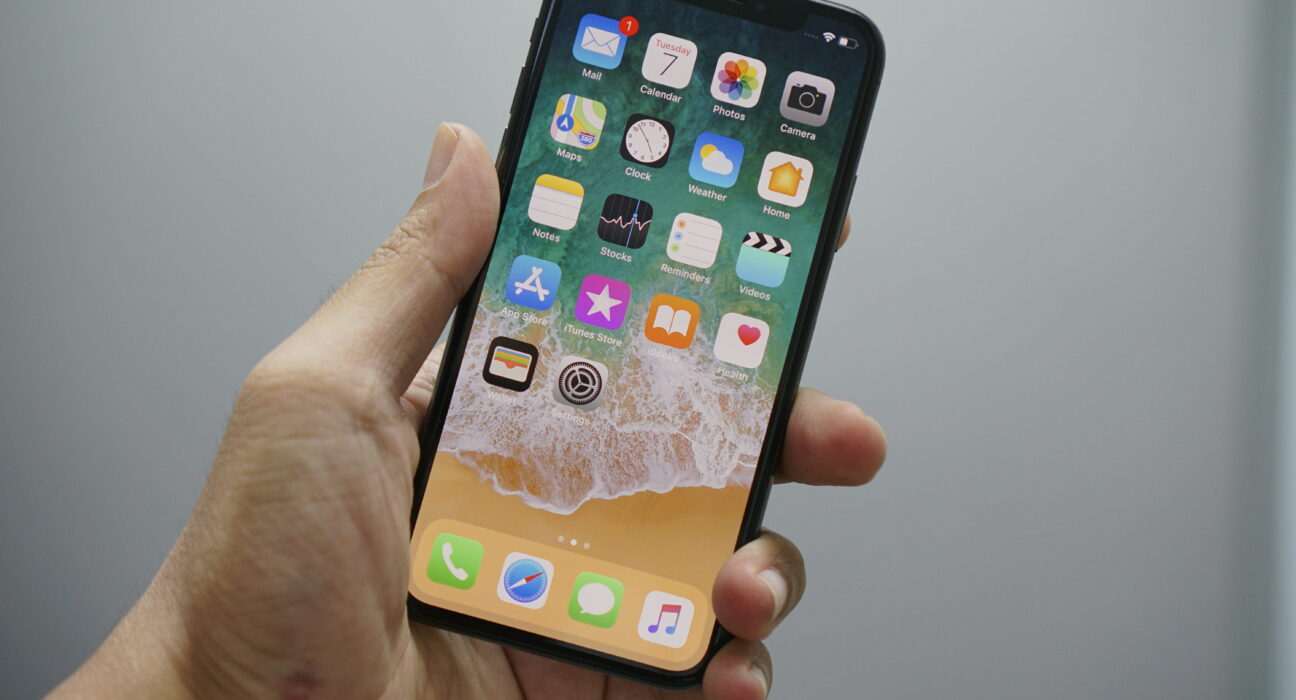
Losing your primary mobile phone creates very big real stress. Using Find My iPhone helps you locate lost items fast. Every single phone user needs to learn this simple feature. You can track your lost device across the whole world.
This clear guide shows you how to find phones quickly. You will learn every single step to protect private data. Anyone with a smart mobile phone should read this now. You can check official Apple support pages for extra tips. You will know how to track missing devices very easily. Setting up location tools ensures your device stays super safe.
Choose Your Best Tracking Method
You have two simple ways to locate your missing phone.
- Use the official app on another working iPad near you. This choice works best when you have an extra tablet. You can see your live position on a big screen.
- Use any web browser to open the official web page. This path works well without owning a second Apple device. You can log into your account from any computer screen.
- Use family sharing options to ask a friend for help. This option helps when your phone battery dies out completely. Your trusted family members can see your last position online.
Which Should You Choose?
Pick the mobile app if you have an iPad nearby.
Choose web access if you only have a computer available.
Use family sharing if your phone battery dies out completely.
How to Set Up Find My iPhone in Settings
Follow simple steps to turn on Find My iPhone now. Make sure your phone links to your personal Apple Account.
- Open your main settings app icon on the home screen grid. Tap your personal name card at the very top menu.
- Tap on Find My iPhone inside this phone menu now. Toggle the top switch until it turns bright vivid green.
- Turn on the Send Last Location toggle switch right below. This option sends location right before the battery dies out.
How to Locate Your Phone Using Find My iPhone Web
You can track your phone using any web browser easily. This process works fast without installing extra desktop app software.
- Open any web browser on your home computer desktop screen. Type icloud dot com slash find in the top address bar.
- Log in using your main Apple Account email and password card. Select your missing phone from the top items drop-down list.
- View the current position map on your clean screen display. Click Play Sound to make your missing phone ring loudly.
Features of Device Tracking and Recovery Options
Understanding your safety options keeps your data fully protected now. These built-in tools assist you during stressful loss situations.
How to Use Lost Mode to Secure Data
- Activate lost mode directly through your personal cloud account screen.
- Enter a phone number so anyone can call you back.
How to Use Play Sound to Find Items Nearby
- Select the play sound option inside your main account menu.
- Listen closely for loud chime rings under your room cushions.
How to Enable Lost Mode with Find My iPhone App
Lost mode locks your screen to protect private data fast. It displays a custom phone number for any honest finder.
- Open the tracking app on another working Apple device now. Select your missing phone from the bottom list of devices.
- Scroll down the screen to find the Mark as lost section. Tap the Activate button to turn on lost mode fast now.
- Enter a phone number where someone can reach you fast. Type a short friendly message for your locked phone screen.
How to Erase Your Data with Find My iPhone Remotely
If you cannot recover your missing device, erase all data. This step stops strangers from seeing your private personal files.
- Access the official tracking website from any working computer or laptop. Pick your missing device from the full list of items.
- Choose the Erase This Device option from the action menu list. Confirm your choice by typing your Apple Account password again.
iCloud Location and Offline Finding Safety Features
Using Find My iPhone needs an active phone network. Offline devices show their last location for one day maximum. Turn on offline finding to track items using nearby devices. Keep your main Apple Account password safe and super secure. Use lost mode to secure your phone from any distance. Use Play Sound to hear your phone under thick cushions. Activate remote erase if you drop your phone far away.
Final Thoughts
You learned how to set up Find My iPhone now. You can track missing phones and protect private personal data. You will feel safe keeping your device protected every day. Try checking your settings right now to stay fully safe. Your phone remains completely secure wherever you travel next time.
Frequently Asked Questions
Does Find My iPhone work when my phone battery dies?
Yes, it sends the last known location before shutting down completely. Your private account stores this map location for one day.
Can I use Find My iPhone from an Android screen?
Yes, you can log into icloud dot com using a browser. The website allows full map access from any smartphone device.
Will Find My iPhone alert the person holding it?
No, tracking works silently without showing alerts on the screen display. The user will not know you are watching the location.
Does Find My iPhone need location services turned on?
Yes, location services must stay enabled to show map spots. Your phone uses GPS signals to pinpoint your exact position.
How do I turn off Find My iPhone before selling?
Open Settings, tap your name card and toggle off the switch. Enter your Apple Account password to complete the entire removal.


