




How to Set Up Call Forwarding on iPhone: Complete Easy Guide
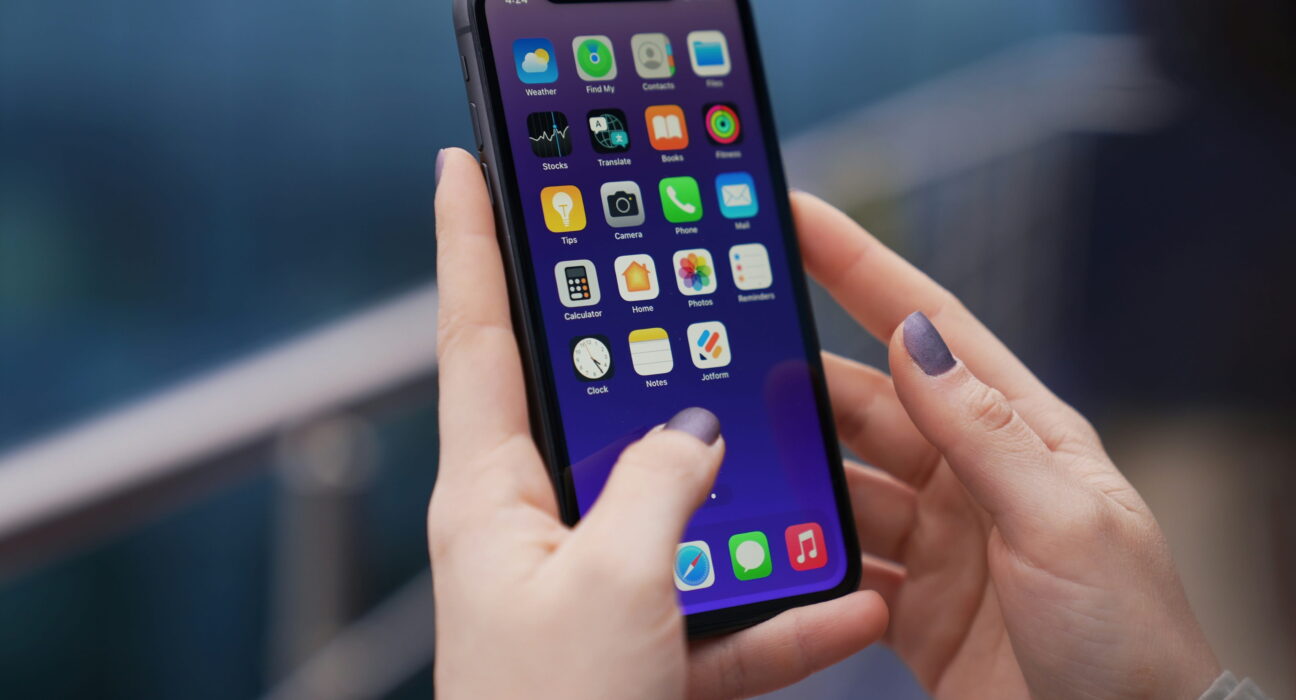
Setting up call forwarding on iPhone is very easy for everyone. You can move incoming calls to another number quite quickly. This helpful feature ensures you never miss any crucial calls. Many users need this tool when traveling far from home. You will learn the exact steps to redirect your calls.
People who travel often should read this short, helpful guide. Anyone with a second phone line needs this cool feature. Busy workers will also love using this simple phone trick. You will redirect all your calls after reading this page. You can check Apple support pages for more great guides.
Choose Your Best Method
You have two main ways to forward your incoming calls. Both options work great but serve very different daily needs.
- Use phone settings for a quick and simple toggle switch. This path works best when you have good cellular service. You can turn it off anytime with one quick tap.
- Use carrier star codes when phone settings do not work. These special numbers send commands straight to your cell carrier. They work great even on older networks or slow phones.
- Use third-party call apps for extra custom phone rules. These apps offer clever choices for your busy daily schedule. They help manage calls when you are away from work.
Which Should You Choose?
Pick phone settings if you want a fast, simple fix. Choose carrier codes if your settings menu shows an error. Use special apps if you need strict custom call schedules.
How to Set Up Call Forwarding on iPhone using Settings.
Follow these simple steps to start redirecting all your calls. Make sure your device connects to an active cell network.
- Open your main settings app from the home screen grid. Scroll down until you see the green phone app icon.
- Tap on the phone option inside your main settings list. Tap on Call Forwarding on iPhone inside this phone menu.
- Toggle the top switch until it turns bright vivid green.
- Tap the forward to button on your phone screen now.
- Type the full target number using your standard dial pad.
- Tap the back button to save your new phone settings.
Your calls will now go straight to that new line.
How to Set Up Call Forwarding on iPhone using Star Codes
Some cell carriers require special star codes to move calls. This method bypasses the main internal settings on your phone.
- Open your standard phone dialer app on your screen.
- Type star seventy two followed by your target phone number.
- Press the green call button to send the carrier code.
- Wait for a short confirmation tone on your speakerphone.
- Hang up the line after you hear the clear sound.
- To turn it off, dial star seventy three right away.
How to Stop Call Forwarding on iPhone
You must know how to turn off this phone feature. Disabling this function returns calls back to your main device.
- Open the main settings app on your home screen today.
- Tap the phone option inside the long settings list menu.
- Tap on call forwarding on iPhone in the menu choices.
- Slide the green toggle switch to the gray off position.
Your phone will now ring normally for all incoming calls.
How to Check Your Current Status
It is good to test your line after setting this. You want to make sure your calls go through correctly.
- Look at the top status bar on your main screen.
- Find the tiny phone icon with a small right arrow.
- Call your own number using a friend’s active phone.
- Check if the second phone rings without any long delay.
- This test proves your redirected calls are working properly now.
Important Things to Keep in Mind
This feature relies heavily on your main carrier phone network. Some prepaid phone plans do not support this feature at all. You might pay extra money for forwarded call airtime minutes. Always check your mobile plan details before turning this on. Bad cell service can cause forwarded calls to drop fast.
Final Thoughts
You learned how to manage call forwarding on iPhone today. You can now send calls to any number you choose. Your phone options are completely under your control right now. Try testing these simple steps on your own phone today. You will stay connected wherever you decide to go next.
Frequently Asked Questions
Does call forwarding on iPhone work when my phone is off?
Yes, it works because the network handles all your calls. Your carrier manages the redirect before calls reach your device.
Will call forwarding on iPhone cost me extra money today?
Your carrier might charge standard airtime minutes for these calls. Check your mobile plan details to avoid any extra fees.
Can I forward calls to an international target phone number?
Yes, but your carrier must allow international long-distance calling. You should confirm international rates with your cellular provider first.
Does call forwarding on iPhone send my text messages too?
No, this built-in feature only redirects incoming voice calls. Your text messages will still arrive on your primary phone.
How do I know if call forwarding on iPhone is active?
A small phone icon with an arrow shows on top. You can also test it by calling from another line.


