




How to Factory Reset an iPhone: Step-by-Step Guide
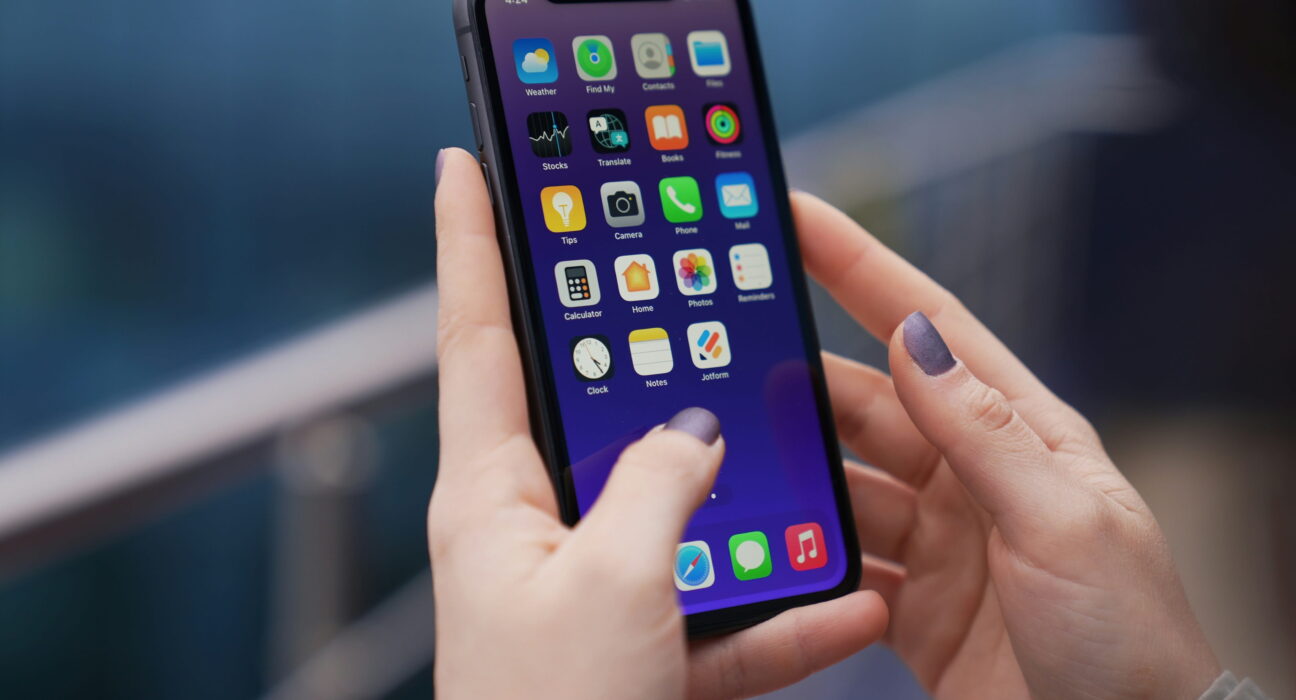
Whether you are selling your old iPhone, trading it in, or just want a clean slate after months of clutter, a factory reset wipes everything back to the way it left the box.
This guide walks you through how to factory reset an iPhone using three different methods, so you can pick whichever one fits your situation, even if your screen is cracked or your phone will not turn on. We will also cover how to back up your data first, so nothing important gets lost in the process.
Before You Factory Reset Your iPhone
A factory reset erases everything on your device, including photos, messages, apps, and saved passwords. Before you start, back up anything you want to keep. Open Settings, tap your name at the top, then tap iCloud and choose Back Up Now. You can also connect your phone to a computer and back up through Finder on a Mac or iTunes on a Windows PC.
It also helps to sign out of iCloud and turn off Find My iPhone ahead of time, especially if you are handing the phone off to someone else. Skipping this step is one of the most common reasons a factory reset an iPhone gets stuck partway through.
Three Ways to Factory Reset an iPhone
You have three main options, depending on your situation.
Reset through Settings. This is the easiest option when your touchscreen still works normally. Everything happens right on the phone, and it usually takes just a few minutes.
Reset through iCloud. This works even if your phone screen is cracked, frozen, or the device is lost. You can trigger the reset remotely from any web browser using your Apple account.
Reset through a computer. This option helps when the phone will not turn on, or the software has frozen completely. You connect the phone by cable and force the reset from your computer.
How to Factory Reset an iPhone Using Settings
This is the method most people use, and it works as long as your device turns on and responds to touch.
- Open the Settings app and tap General.
- Scroll down and tap Transfer or Reset iPhone.
- Tap Erase All Content and Settings, then confirm your choice.
- Enter your passcode when prompted, then enter your Apple ID password to confirm.
- Wait for the reset to finish. The Apple logo will appear while the phone wipes itself, and this can take a few minutes.
How to Factory Reset an iPhone Using iCloud
If your screen is broken or the phone is out of reach, you can still wipe it remotely.
- Open a web browser on any computer or another phone and go to iCloud.com.
- Sign in with the Apple ID linked to the device.
- Open Find My, select the iPhone from your device list, and choose Erase This Device.
- Enter your Apple ID password to confirm. The phone will erase itself the next time it connects to the internet or a cellular network.
How to Factory Reset an iPhone Using a Computer
This method is useful when the phone will not respond on its own, such as after a failed software update.
- Connect the iPhone to a computer using a USB cable.
- Open Finder on a Mac, or open iTunes on a Windows PC.
- Put the iPhone into recovery mode. On most current models, quickly press Volume Up, then Volume Down, then hold the side button until the recovery screen appears.
- When your computer detects the phone in recovery mode, choose Restore.
- Wait for the software to download and install. This can take several minutes depending on your internet connection.
Removing Your Apple Account Before You Sell or Give Away Your iPhone
If you are passing the phone to someone else, a factory reset alone is not always enough. You also want to remove your Apple account so the next owner is not locked out.
Go to Settings, tap your name, scroll down, and tap Sign Out. Enter your password to confirm, then choose whether to keep a copy of your data on the device or remove it. Once you sign out, the phone is no longer linked to your account, and a new owner can set it up under their own account.
Restoring Your Data on a New or Reset iPhone
Once your old data is backed up, getting it onto a new or freshly reset phone is straightforward. Turn the phone on, choose your language, and connect to Wi-Fi. When prompted, choose Restore from iCloud Backup, sign in with your Apple ID, and select the most recent backup. Your photos, apps, and settings will download in the background while you keep using the phone.
Common Reasons People Wipe Their iPhone
There are a few situations where this comes up most often. Selling or trading in an old phone is the biggest one, since buyers expect a clean device with no personal data left behind. Some people wipe their phone when it starts acting slow or buggy, and a clean start clears out whatever software issue was causing the trouble.
Others do it before sending a device in for repair, since technicians need full access without running into a locked screen or old files in the way. And handing a phone down to a family member is another common reason, since the new owner should start fresh under their own account rather than yours.
What to Do If the Reset Gets Stuck
Every so often, the process stalls partway through, and it is usually one of a few things. A weak Wi-Fi connection can interrupt the process if you are erasing through iCloud, so switch to a stronger network and try again.
A low battery can also cause the phone to pause mid-reset, which is why charging above fifty percent beforehand matters. If the phone freezes on the Apple logo for longer than twenty minutes, connect it to a computer and use Finder or iTunes to restore it manually. This forces a fresh install of the operating system and almost always clears whatever was causing the phone to hang.
Common Mistakes to Avoid
A few small mistakes cause most of the headaches people run into. Forgetting to back up first is the biggest one, since there is no way to recover local data once the wipe finishes. Leaving Find My turned on is another common issue, since it activates Activation Lock and can leave the next owner stuck on a screen asking for your Apple ID.
Trying to reset with a nearly dead battery is a third mistake worth avoiding, since an interrupted wipe can leave the phone in a confusing half-erased state. Taking a few extra minutes to prepare properly saves a lot of frustration later.
What to Know Before You Reset
A few things are worth keeping in mind so the process goes smoothly. Make sure your phone is charged above fifty percent, or plugged in, since a reset that gets interrupted by a dead battery can cause problems. Confirm your backup finished successfully before wiping anything.
If your device has an eSIM, decide whether you want to keep or remove your cellular plan, since the reset will ask you directly. And double-check that you remember your Apple ID password, since you will need it more than once during the process.
Final Thoughts
Learning how to factory reset an iPhone is a useful skill whether you are selling the phone, fixing a stubborn glitch, or just starting over with a clean setup. Pick the method that matches your situation, back up anything you care about first, and the whole process should take less than half an hour from start to finish.
Frequently Asked Questions
Does a factory reset erase all my photos?
Yes, it erases everything stored locally on the device, including photos. Back up your photos to iCloud or a computer first if you want to keep them.
Will a factory reset remove my eSIM?
You can choose to keep or delete your eSIM during the process. The phone will ask before removing any cellular plans.
Can I factory reset an iPhone without a passcode?
No, Apple requires your passcode and Apple ID password to complete a reset. This prevents anyone else from wiping your phone without permission.
How long does it take to factory reset an iPhone?
Most resets finish in about ten minutes, though it can take longer on older devices or slower storage.
Does resetting an iPhone update it to the newest software?
Resetting through Settings keeps your current software version. Restoring through a computer usually installs the latest available software during the process.


