




iPhone WiFi Calling: Complete Setup Guide
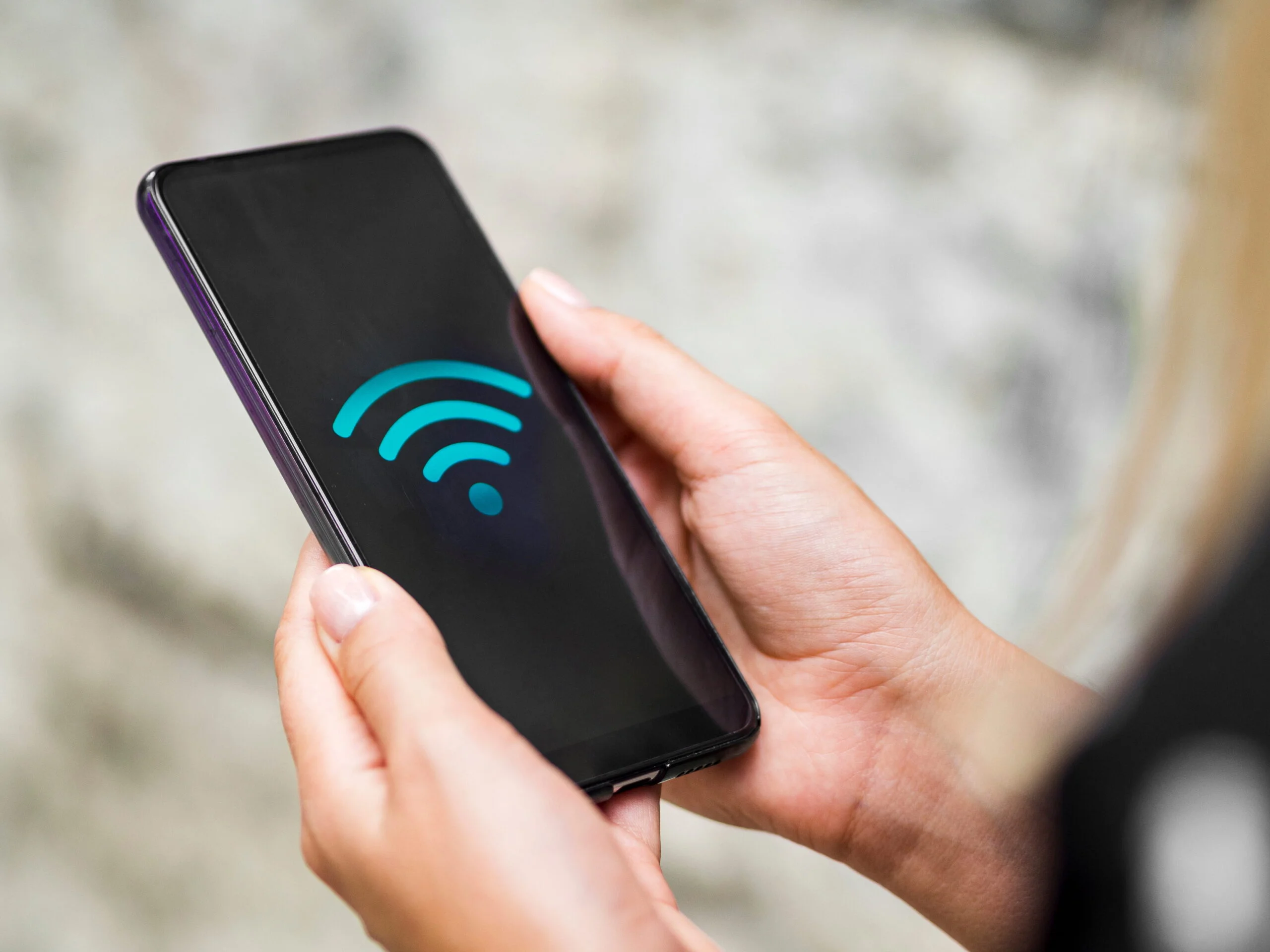
Dropped calls in your basement or a weak signal at home are both fixable with iPhone WiFi Calling settings. Instead of relying on a cell tower, your phone routes calls through your internet connection, which usually means clearer audio in places your carrier struggles to reach.
This guide walks you through turning it on, adding your other Apple devices, and fixing it if something stops working. You don’t need any technical background, just a few minutes and your phone in hand.
What WiFi Calling Actually Does
Wi-Fi calling lets your phone send and receive calls over an internet connection instead of the cellular network. Your carrier still handles the call, but the last stretch of the connection travels over WiFi rather than through a cell tower. That matters most in basements, rural areas, or thick concrete buildings where cell signal usually struggles to get through.
Choosing the Right Setup for You
There are a few ways to use iPhone WiFi calling features, depending on what devices you own.
Just your iPhone. This is the simplest option and takes under two minutes to set up. Your phone will automatically switch between cellular and WiFi depending on which one has a stronger connection.
iPhone plus an iPad or Mac. If you own other Apple devices, you can answer iPhone calls from any of them as long as they’re signed into the same Apple account. This is handy when your phone is charging in another room.
Apple Watch on its own. If you like to exercise without carrying your phone, your watch can handle calls through a WiFi network it already knows. You’ll need to set up calling on your other devices first before this works.
How to Turn On WiFi Calling on iPhone
- Open the Settings app on your iPhone.
- Tap Cellular (or Mobile, depending on your region).
- Tap WiFi Calling.
- Toggle the switch on.
- Enter your address if asked, since this is used for emergency services.
- Tap Enable or Confirm to save it.
- Wait a few seconds while your phone activates the feature.
- Look for the WiFi icon next to your signal bars to confirm it’s working.
Once that icon shows up, your iPhone is ready to make and receive calls over iPhone WiFi calling instead of relying only on cell signal.
Adding Other Apple Devices
If you want your iPad or Mac to ring along with your iPhone, here’s how to connect everything.
- Make sure all your devices are updated to the latest software.
- On your iPhone, go to Settings, then Cellular, then WiFi Calling.
- Confirm WiFi Calling is turned on for this iPhone.
- Go back one screen and tap Calls on Other Devices.
- Turn on Allow Calls on Other Devices.
- Turn on the switch for each device you want included.
For iPad: Open Settings, tap Apps, find FaceTime, and turn on Calls from iPhone.
For Mac: Open FaceTime, go to Settings or Preferences depending on your macOS version, and turn on Calls from iPhone.
For Apple Watch: This one’s automatic once Allow Calls on Other Devices is turned on. There’s nothing extra to configure on the watch itself.
Making Calls From Each Device
Once everything is connected, making calls is nearly identical across devices.
On an iPad, open FaceTime, tap the plus button, type in a name or number, then tap the audio icon to start a voice-only call over WiFi.
On a Mac, open FaceTime from your Applications folder, click a contact or type a number, then click the phone icon. Incoming calls show up as a notification you can click to answer.
On an Apple Watch, open the Phone app, scroll through contacts with the digital crown, tap a contact, then tap the phone icon. Your watch needs to be near a known WiFi network for this to work well.
Removing a Device From WiFi Calling
If you want to stop a device from ringing, go to Settings, then Cellular, then Calls on Other Devices. Find the device in the list and turn its switch off. It stops ringing within seconds, and you can always turn it back on later if you change your mind.
Fixing WiFi Calling When It Stops Working
A few quick checks usually solve most problems with iPhone WiFi calling setups.
- Confirm your carrier actually supports WiFi calling on your plan.
- Check for a software update under Settings, then General, then Software Update.
- Contact your carrier to make sure the feature is active on your account.
- Turn WiFi Calling off and back on under Settings, then Cellular.
- Restart your iPhone by holding the power button until it shuts off, then turning it back on.
- Try a different WiFi network, since some networks block the ports WiFi calling needs.
- As a last resort, reset network settings under Settings, then General, then Transfer or Reset iPhone, then Reset Network Settings. This clears saved WiFi passwords, so be ready to reconnect afterward.
If none of that works, your carrier may need to fix something on their end, so a quick call to them is the next step.
Final Thoughts
Setting up iPhone WiFi calling features takes just a few minutes and can noticeably improve call quality anywhere your cell signal struggles. Once it’s on, you can extend it to your iPad, Mac, and Apple Watch so calls reach you no matter which device is nearby. If something stops working, the troubleshooting steps above solve the issue in almost every case.
Frequently Asked Questions
Does WiFi calling cost more on my phone bill?
With most U.S. carriers, iPhone WiFi calling use doesn’t cost extra. It uses your regular minutes just like a normal cellular call. If you’re traveling internationally, check with your carrier about any differences.
Can I use WiFi calling when I travel to Europe?
Yes, it works anywhere you have a WiFi connection, which helps you avoid expensive international roaming charges since the call travels over the internet instead of cell towers.
Will WiFi calling drain my iPhone’s battery faster?
Actually, it often uses less battery than searching for a weak cellular signal. In areas with poor reception, your phone may even last longer with WiFi calling turned on.
Can I call 911 using WiFi calling?
Yes. Your iPhone will use WiFi calling for emergency calls when needed, but make sure your address is accurate in settings so responders can find you if necessary.
Why does WiFi calling turn off on its own sometimes?
Your iPhone automatically switches to cellular when that signal is stronger, which is expected behavior. It’s designed to give you the best call quality automatically, whether that’s over WiFi or cellular.


