




How to Delete Apps on iPhone: Complete Simple Guide
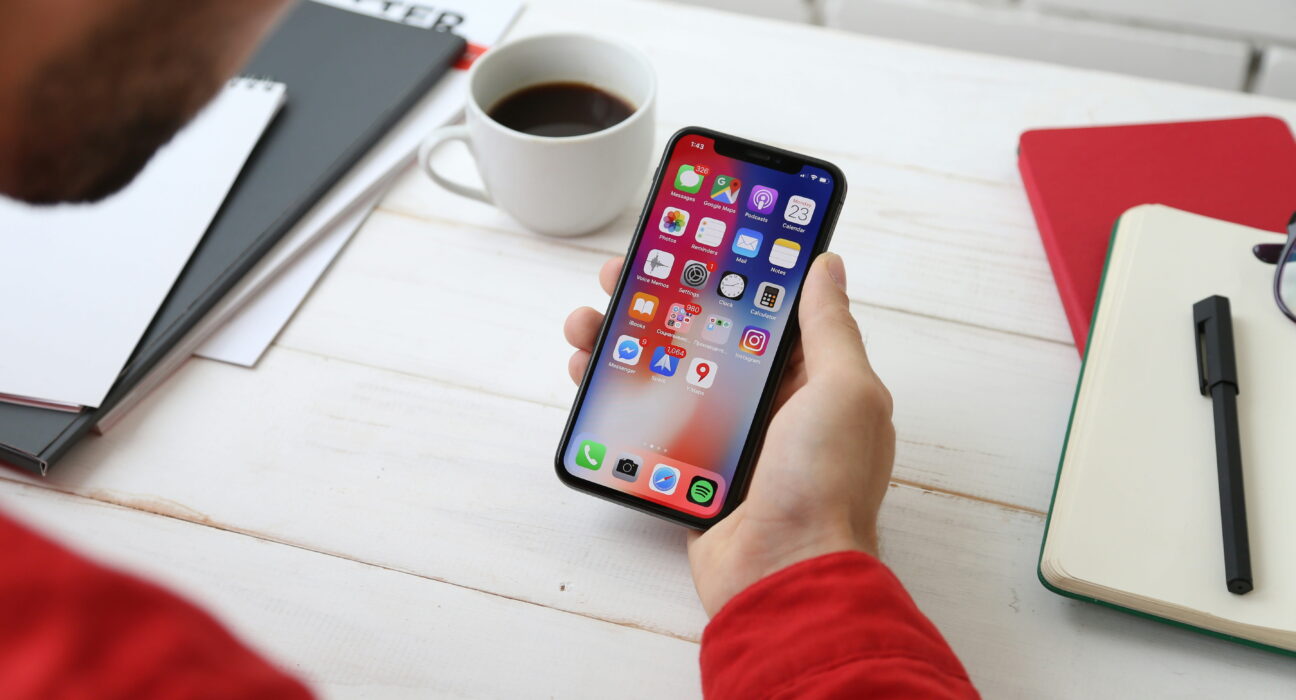
Learning how to delete apps on iPhone keeps your phone super fast. Removing old software clears out clutter and frees internal storage. Every mobile owner needs clear space for new pictures daily. Extra room helps your phone run better during normal use. You will learn quick ways to clear your main screen.
You can check official phone guides for extra general steps. You can manage your digital layout using simple touch commands. Clearing unwanted software keeps your device clean and responsive always. Your smartphone will hold important personal data very safely. You can keep all your favorite tools close by.
What Deleting Software Means on Your Device Display
When you follow the how to delete apps on iPhone methods on your screen, you erase the application entirely from your system. This process removes all saved internal files and frees up space. You can reinstall your purchased items anytime you want.
Understanding Your Current Storage Status
- Free internal space: You clear out heavy files and reclaim extra system memory.
- Clean main screen: You hide unused icons to make your screen look organized.
- Remove local data: Your device wipes local game scores and saved login details.
Choose Your Best Method to Remove Unused Programs
You have three simple ways to clear software right now.
- Hold down the icon on your home screen layout until a small menu pops up. This choice works best for quick removal of simple daily tools. You delete the main software file in just two taps.
- Find hidden software inside your App Library grid on the final screen page. This method works well if icons are hidden from view. You scroll down the full list to find your target.
- Open your system settings menu to manage iPhone storage space with exact details. This choice shows how many megabytes each tool takes up. You inspect file sizes before you make a final decision.
Which Should You Choose?
Pick the main screen option if you see the icon.
Select the library choice if the icon is hidden away.
Use the settings menu if your storage is full.
How to Delete Apps on iPhone Using Home Screen
Follow simple steps when learning how to delete apps on iPhone from your main screen grid. Make sure your touchscreen stays dry during this process.
You can delete apps on an iPhone by touching and holding the app icon, selecting “Remove App”, and confirming with “Delete App”.
Here are the three most effective ways to remove apps completely from your device.
Method 1: From the Home Screen
- Touch and hold the app icon you want to delete until a pop-up menu appears.
- Tap the Remove App button, which is marked with a red minus symbol.
- Choose the Delete app option to completely uninstall it and clear its local data.
- Tap confirm delete button once more to complete the process.
Note: If you choose Remove from Home Screen instead, the app will stay on your phone but will only be visible in your App Library grid.
How to Delete Apps on iPhone Using App Library
If an app is hidden from your main screen, you can find it in your organized repository.
Method 2: From the App Library
- Swipe left past all your home screen pages until you reach your App Library grid.
- Find the app using the category folders or by typing in the top search bar.
- Touch and hold the app icon from the results list shown on the display.
- Tap the Delete app option, then confirm by tapping the Confirm Delete button.
How to Delete Apps on iPhone Using System Settings
This method is ideal if you are looking to see exactly how much storage space an app is using before removing it.
Method 3: Through iPhone Settings (To Free Up Space)
- Open the Settings app icon and navigate directly to your General settings menu.
- Tap iPhone storage space to view every installed program file size.
- Scroll down and select the app you want to remove completely.
- Tap the Delete App option to completely wipe the app and its data.
Related Process: How to Restore Your Deleted Data
Learning how to delete apps on iPhone includes knowing how to get erased information back again later. You can retrieve cloud saves by following simple backup steps.
- Open the official App Store icon on your main display screen. Search for your deleted app name in the top bar.
- Tap the blue cloud icon to start the fresh download. Wait for the circle progress bar to fill up completely.
- Open the restored app and log into your personal profile. Your saved iCloud backup data syncs back to your device.
Important Things to Keep in Mind Always
Practicing how to delete apps on iPhone requires proper account management every single day. Always back up your important photos before wiping large programs. Check your active paid plans so you do not waste money. Turn on automated cloud saves inside your account settings menu. Keep your main account password safe and written down at home. Clean your front display glass using a soft, dry cloth. Charge your phone battery above twenty percent during big system updates.
Final Thoughts
You learned how to delete apps on iPhone without any stress. You can clear out old software and fix storage issues. You will enjoy a clean screen layout on your device. Try checking your storage list right now to free up space. Your device stays super fast every time you open apps. Enjoy using your phone with complete peace of mind.
Frequently Asked Questions
How to permanently delete app data from iPhone?
Open your system settings menu to check iPhone storage space. Tap the app name and tap the Delete App option.
Is deleting an app on iPhone the same as uninstalling it?
Yes, both actions remove the software completely from your phone. They clear out local files to save internal device memory.
Can I delete apps from my iPhone?
You can remove installed software using your home screen layout. Hold any icon down until the pop-up menu appears.
Can I remove an app without deleting it?
Choose Remove from Home Screen to hide the visual icon. The software stays inside your organized app library grid safe.
How can I permanently delete an app off my phone?
Open your settings menu and select your general settings menu. Tap Storage, then choose the Delete App option to wipe it.
Is it better to delete or uninstall an app?
Both terms mean the same action on your device. Deleting removes the software and frees up internal space fast.
How to remove apps from app library on iPhone?
Swipe left until you see your organized App Library grid. Hold the icon down and tap the Delete App option now.


