




iPhone Apps Crashing? Fix It Fast (2026 Guide)
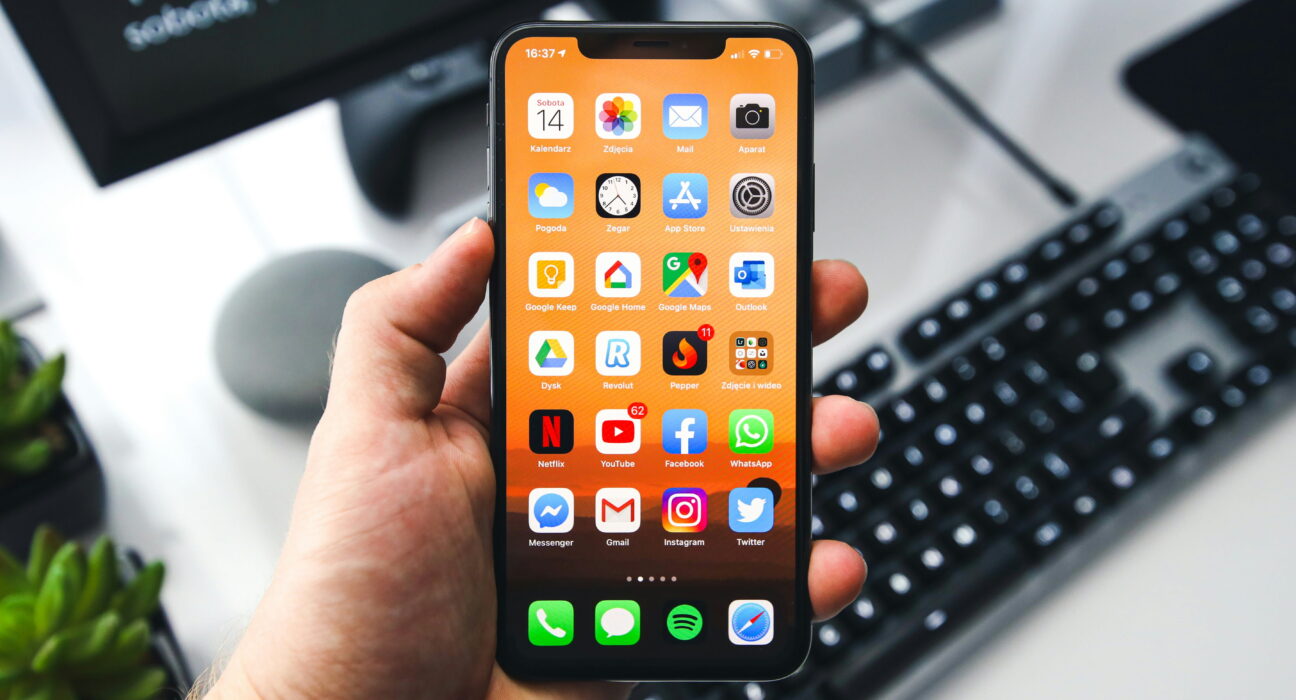
Are your iPhone apps crashing without any warning? One second an app is open, the next it closes on its own or freezes on a blank screen. It is frustrating, especially when it happens in the middle of something important.
The good news is that most cases come from low storage, an outdated app, or a small software bug, not a broken phone. In this guide, you will find quick fixes to try first, plus deeper steps for apps that keep crashing again and again. By the end, your iPhone apps should run the way they used to.
Quick Fix: Try This First
Before you try anything else, run through these steps. They solve most cases of iPhone apps crashing in just a few minutes:
- Force close the app, then reopen it
- Restart your iPhone
- Update the app from the App Store
- Check that you have enough free storage
These four steps clear out most small glitches that cause an app to crash or freeze. If your iPhone apps are still crashing after this, keep reading for the deeper fixes below.
Why Do iPhone Apps Keep Crashing?
A few common causes are behind most cases of iPhone apps crashing. Knowing which one applies to you makes it easier to pick the right fix.
- Outdated apps. Old apps often break after a software update because they were not built for the newest iOS version. This is one of the most common reasons an app crashes right after you update your phone.
- Software bugs. System glitches inside iOS itself can cause an app to stop responding or close without warning, even when the app has nothing wrong with it.
- Low storage. When your iPhone is nearly full, apps cannot load the data or cache they need to run properly. This is a common but often overlooked cause of iPhone apps crashing.
- Corrupted cache data. Temporary files that build up over time can slow an app down or cause it to freeze. Clearing this cache often fixes the problem right away.
- Too many apps running at once. Keeping many apps open in the background at the same time can overload your iPhone’s memory and cause the newest app you open to crash.
How to Fix iPhone Apps Crashing
Restart Your iPhone
A simple restart clears temporary bugs and is often enough to stop an app from crashing on its own.
Update Your Apps
Go to the App Store, tap your profile icon, then update any app with a pending update. Outdated apps are one of the most common reasons iPhone apps keep crashing after an iOS update.
Reinstall the App
Delete the app, then download it again from the App Store. This fixes most cases where an app will not open or keeps crashing due to corrupted data from a previous install.
Update iOS
Go to Settings > General > Software Update and install any update that is waiting. Apple often includes fixes for app stability in these updates, so this step alone can solve the problem.
Fix an App That Will Not Open
If a specific app will not open at all, try this:
- Force close the app by swiping it away from the app switcher
- Restart your iPhone
- Reinstall the app from the App Store
This sequence solves most cases where a single app refuses to launch.
Advanced Fixes for Ongoing Crashes
Reset all settings. Go to Settings > General > Transfer or Reset iPhone > Reset All Settings. This clears out display, privacy, and network settings without deleting your photos or files, and it can fix deeper crashes that a simple restart cannot.
Check your storage. Go to Settings > General > iPhone Storage to see what is taking up space. Low storage is one of the biggest reasons behind iPhone apps crashing, so deleting old photos, videos, or unused apps can make a real difference.
Clear app cache data. Some apps let you clear cache directly from their own settings menu. For others, deleting and reinstalling the app is the easiest way to clear built-up cache and reduce lag.
Turn off background app refresh. Go to Settings > General > Background App Refresh and turn it off for apps you rarely use. This frees up memory and can stop other apps from crashing due to low resources.
When Only One App Keeps Crashing
Sometimes iPhone apps crashing is not a system-wide problem; it is limited to a single app like a social media app, a game, or a streaming service. If that is what you are seeing, check the App Store listing for that app first, since a recent update on the developer’s side is a common cause.
Reviews from the last few days often mention the same crash if it is a widespread bug rather than something specific to your phone. If other users are not reporting the same issue, the problem is more likely tied to your device, your storage, or a corrupted install of that one app rather than the app itself. Deleting and reinstalling that single app usually clears up crashes that are limited to it alone.
How Storage Affects iPhone Apps Crashing
Storage plays a bigger role in iPhone apps crashing than most people realize. Apps need free space to write temporary files, cache data, and update logs while they run. When your phone is close to full, even simple apps can stall, freeze, or shut down mid-task because there is nowhere for that data to go.
A good rule of thumb is to keep at least one or two gigabytes of free space at all times. You can check this under Settings > General > iPhone Storage, where iOS also suggests specific apps or files you can remove to free up room quickly.
Daily Habits to Avoid App Crashes
- Keep your apps updated through the App Store
- Avoid letting your storage get completely full
- Restart your iPhone every few days
- Only download apps from the App Store
- Close apps you are not using instead of leaving dozens running
These simple habits go a long way toward keeping your iPhone apps stable and preventing crashes before they start.
Common Mistakes That Make This Worse
Ignoring app updates. Outdated apps are a major reason apps crash after an iOS update, and skipping updates only makes the problem worse over time.
Installing untrusted apps. Apps from outside the App Store are far more likely to cause repeated crashes and other system problems.
Overloading your device. Running too many apps at once increases the chances of the newest app you open closing itself or freezing.
Final Thoughts
iPhone apps crashing is usually easier to fix than it feels in the moment. Start with a restart and an app update, move on to reinstalling the app if that does not help, and use a full iOS update or settings reset for anything deeper.
Keep your storage clear and your apps updated, and your iPhone should stay stable for daily use. Most people find the problem clears up after just one or two of these steps, so there is rarely a need to jump straight to a factory reset or a trip to the repair shop. Try these steps today and get your apps running smoothly again.
Frequently Asked Questions
Why are apps suddenly crashing on my iPhone?
This usually comes down to low storage, outdated apps or iOS, a software glitch, or low memory from too many open apps. Restarting your phone, updating your apps, and freeing up space usually clears it up.
What are the problems with iOS 26 apps?
Some iOS 26 updates, including 26.2.1, have been linked to reports of app crashes, freezing, battery drain, and connectivity issues for a portion of users. Apple has released follow-up updates to address several of these bugs, so keeping your iOS current is one of the best ways to avoid them.
Why are my apps suddenly crashing again after I fixed it once?
Repeated crashes are often caused by a corrupted cache, a recent update bug, or an app that has not been updated for the newest iOS version. Restarting your device, updating apps, clearing cache, or reinstalling the problem app usually solves it for good.
Can I go back to iOS 26 from iOS 18?
This question usually means going back to an older version like iOS 18 from iOS 26. You can do this through a full computer restore using Finder or iTunes, but only if Apple is still signing that older version, and the process erases all the data on your device.
Does iOS 26 cause iPhone crashes?
Some versions of iOS 26 have caused crashes and freezing for certain users, along with battery drain complaints. These issues have not affected every iPhone, and Apple has pushed updates to fix many of the reported bugs.


