




iPhone Air: Complete Guide to Features and Specifications
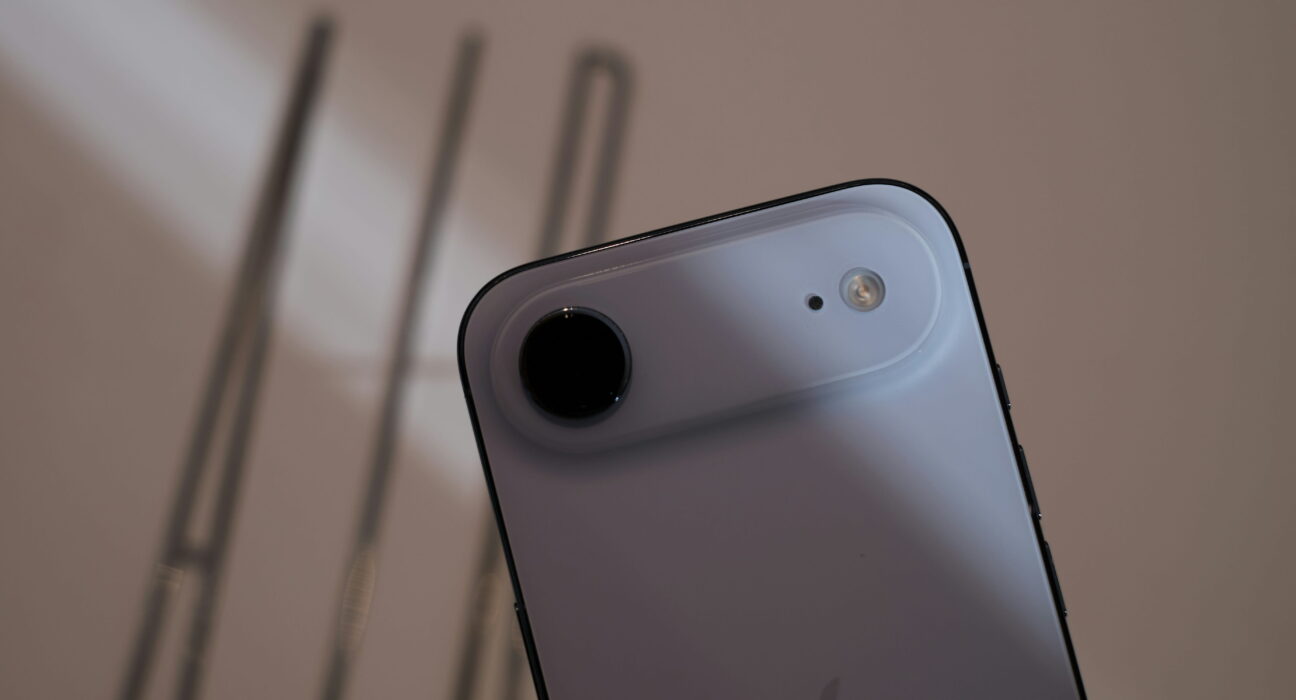
Holding this new light device feels amazing in your hand. Learning how to set up your phone settings helps with your work. This helpful guide helps people who love light mobile phones. You can finish the full device setup in just five minutes.
You will configure primary camera options and bright display screens. Check out Apple online for extra product details right now. Customizing your slim phone makes daily holding feel super easy. You will feel happy carrying this thin phone around town. Never worry about dropping heavy devices while calling your friends. Enjoy your sleek phone without feeling the weight in your pockets.
Overview of the iPhone Air Device
The iPhone Air is Apple’s thinnest and lightest smartphone ever made. Introduced on September 9, 2025, it officially replaced the “Plus” model in Apple’s smartphone lineup. It focuses heavily on ultra-premium aesthetics and portability rather than maximum hardware versatility.
The product offers top portable performance inside a thin body. Reviewers love carrying this ultra-light frame during long trips. Users enjoy smooth visual performance during quick daily reading tasks.
Key Specifications
- Design & Form Factor: Measures an incredibly slim 5.6 mm in depth and weighs just 165 grams. It is built with a Grade 5 titanium frame and features Ceramic Shield 2 glass for advanced durability and bend resistance.
- Display: A large 6.5-inch Super Retina XDR OLED display with ProMotion (up to 120Hz refresh rate) and a peak outdoor brightness of 3,000 nits.
- Processor & Memory: Powered by the A19 Pro chip paired with 12GB of RAM, built to fully support Apple Intelligence features.
- Camera Setup: Built with a single 48MP Fusion rear camera housed inside a distinct rear plateau/bump. It features a built-in 2x crop telephoto option but completely lacks dedicated Ultra-Wide or optical Telephoto lenses.
- Connectivity: Built exclusively with eSIM technology worldwide, omitting the physical SIM card tray to optimize internal space. It supports Wi-Fi 7, Bluetooth 6, and 5G.
- Color Options: Available in Sky Blue, Light Gold, Cloud White, and Space Black.
Core Trade-Offs
While the device offers a striking, futuristic design, opting for the iPhone Air over standard or Pro models requires navigating specific engineering compromises:
- The Cameras: You lose the multi-lens system, meaning there is no macro shooting or expansive ultra-wide photography.
- Audio & Power: The physics of the slim frame mean it utilizes a single mono speaker and has a smaller 3,149 mAh battery, which yields a slightly reduced battery runtime (up to 27 hours of video playback) compared to Pro Max variants.
- Pricing: The iPhone Air starts at $999 for the base 256GB storage tier.
Choosing Your Daily Camera Profile
When configuring your single-lens camera, pick these main paths.
- Setting default photo resolution to twenty-four megapixels creates sharpness. This choice keeps file sizes small inside your storage drive. Choose this path if you capture pictures during casual events.
- Turning on two times telephoto crop enables close portrait shots. The central lens crops pixels directly for crisp subject detail. Select this setting if you take portraits of family members.
- Using standard video capture saves memory space during recording sessions. Lower video file size keeps storage clean for months. Pick this setup if you shoot daily personal video clips.
Main Instructions to Set Up Your Device
You can set up your thin phone using simple steps.
How to set up camera modes using the Settings Menu
- Tap the main settings app icon on your screen.
- Scroll down until you find the camera options menu.
- Select formats and choose high-efficiency picture file output.
- Return to the camera menu and enable grid screen lines.
- Open the camera app to test your new shooting grid.
- Take sharp photos easily without tilting your light phone.
How to set up a cellular network using eSIM Technology
- Turn on your new phone by holding the power button.
- Connect your device to a fast home wireless network.
- Open Settings and select the cellular mobile data options list.
- Tap Add cellular plan to start the profile setup screen.
- Scan the QR code provided by your local mobile carrier.
- Wait two minutes until the network bar shows a full signal.
Related Process: How to Transfer Old Phone Data
After activating your mobile network, move your old files over.
- Place your old device right beside your new thin phone.
- Turn on both screens and tap the Quick Start prompt.
- Scan the blue moving circle image using your old phone camera.
- Enter the old device passcode on your new display screen.
Related Process: How to Configure Display ProMotion
Adjusting screen motion speeds creates smooth reading for your eyes.
- Open the main settings app on your display home screen.
- Click accessibility and select Motion Controls from the options list.
- Ensure the frame rate toggle stays on for smooth movement.
- Enjoy reading online news with clear, fast scrolling speed.
Customizing Action Button Shortcuts for Daily Use
Configuring side buttons lets you open apps without unlocking screens.
- Assign a camera shortcut to the physical side button for fast pictures. Pressing the side switch opens the photo app instantly during travel moments. Taking rapid pictures becomes simple while walking through city parks.
- Set the silent profile toggle to the button for quiet school classes. Holding the side switch silences all incoming phone calls and texts. Switching phone sound states takes one second without looking down.
- Map flashlight tool to side button for night walks. One quick click illuminates dark pathways when returning home late. Finding doorway keyholes becomes easy in total darkness outside home.
Managing Light Gold and Titanium Frame Care
Taking care of slim metal edges keeps device surfaces clean.
- Clean titanium frame edges using a soft, dry microfiber cloth. Wiping metal edges removes hand oil stains without chemical spray. Regular wiping keeps shiny phone sides looking clean every week.
- Pair thin phone body with light protective clear plastic cases. Slim plastic covers shield glass corners against accidental pavement drops. Using lightweight cases preserves the original thin feeling in your hands.
- Store device inside clean soft pockets away from metal keys. Sharp key edges can scratch glass screens during fast walks. Keeping pockets empty protects phone surfaces from deep scratch lines.
Using Dynamic Island Tools for Quick Control
The top screen cutout shows live app information during tasks.
- Open the music app and start playing your favorite song.
- Swipe up to close the app and return to the home screen.
- Long-press the top island shape to see media controls.
- Pause or skip tracks without opening the full app again.
Setting Up Face ID for Quick Security
Setting up face unlocking keeps personal phone files secure at all times.
- Open the Settings app and select the Face Security Access menu.
- Tap the Enroll Face option and hold the device before your eyes.
- Turn your head slowly in complete circles as the screen prompts.
- Test unlocking the screen by looking directly at the front glass.
Managing Cloud Storage for Single Camera Photos
Syncing photos online protects your family memories against loss automatically.
- Open the settings app and tap your main username.
- Select cloud storage options and click on the Photos menu.
- Toggle the automatic sync switch to the green active position.
- Watch photos upload automatically whenever connected to home networks.
Final Thoughts
You have learned how to configure your thin phone easily. Changing daily camera options keeps your physical photos looking great. You can enjoy your day without holding heavy round metal. Check out our other helpful guides to learn extra tricks. Have fun using your fast phone with your best friends. You made a fine choice for your daily phone needs.
Frequently Asked Questions
What is iPhone Air good for?
This phone is super thin and feels very light to use daily. It gives you top speed for reading and taking pictures. Users get high style with modern, fast mobile software performance.
What is the iPhone Air price in Pakistan?
The official price ranges from PKR 505,000 to PKR 700,000. High import taxes add extra cost compared to local buyers. Non-active box pack units cost much less in markets.
Is the iPhone 17 Air good?
Yes, it runs fast with the strong A19 Pro chip. The bright display panel supports very smooth scrolling at times. You can view clear screens even under bright direct sunlight.
What are the disadvantages of an iPhone Air model?
It only includes one main camera lens on the back. The physical body uses a single mono speaker for sound. Its smaller battery capacity offers slightly shorter daily runtime hours.
What is Apple’s biggest weakness?
Apple charges high prices for simple storage upgrade options today. Repair parts can cost a lot of money to fix. Their strict system limits custom setup choices for casual users.
Who should buy the iPhone Air?
You should buy this phone if you love super thin designs. People who value pocket comfort over multiple cameras will love it. It suits users who want a sleek and modern device.


