




How to Set Up Your iPhone 16 Pro Max: Complete Setup Guide
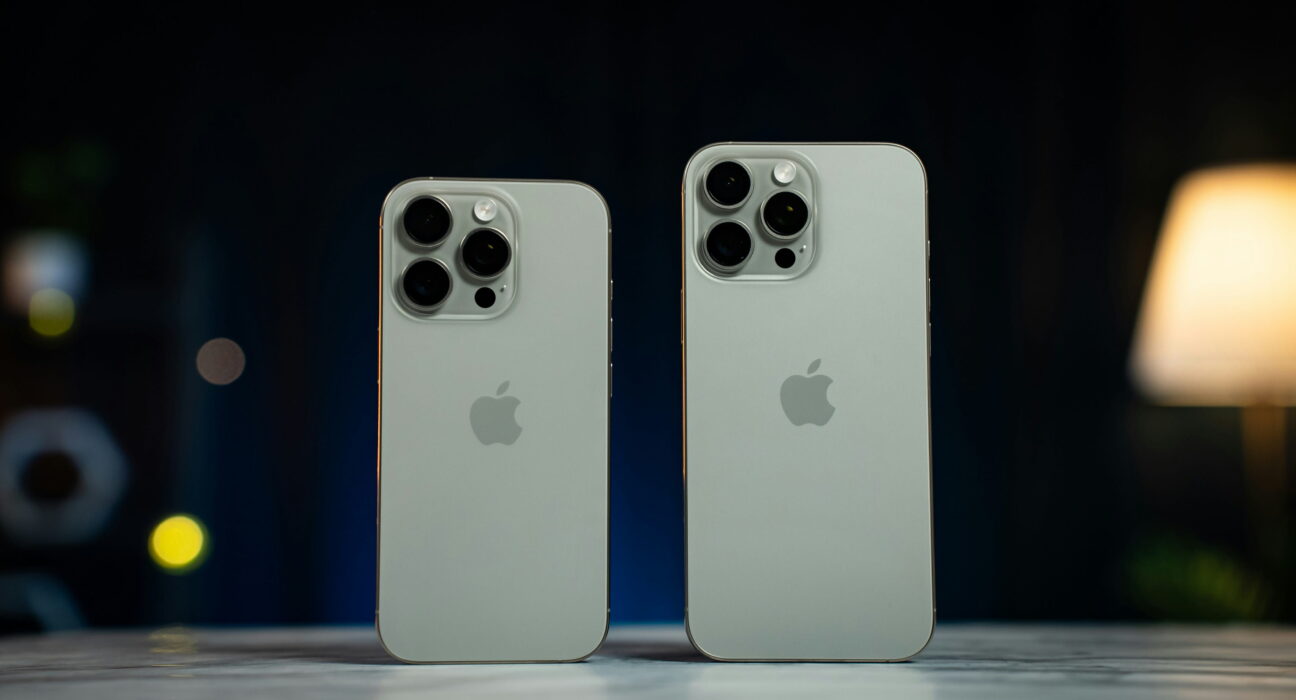
Getting a new iPhone 16 Pro Max brings lots of excitement. Setting up your mobile phone correctly protects your private data. Anyone upgrading to a new phone should read this guide. You will learn every step to transfer files very fast.
This article shows you how to set up your iPhone 16 Pro Max device. You can check official Apple support pages for extra tips. You will know how to adjust your main screen settings. Following simple steps ensures your device stays super safe online. You can enjoy using your brand new phone right away. Your new mobile phone will work perfectly every single day.
Choose Your Best Transfer Method
You have three simple ways to set up your device.
- Use quick start by placing your old phone near it. This choice works best when you keep your old phone. You can transfer all personal data over the air.
- Use an iCloud backup to restore your personal files. This path works well if your old phone is gone. You can download your saved data from any wireless network.
- Use a computer cable to move your data over fast. This option helps when your home internet runs very slow. Your desktop computer moves your heavy media files very quickly.
Which Should You Choose?
- Pick Quick Start if your old phone works right now.
- Choose cloud restore if your old device was lost recently.
- Use computer transfer if your internet speed stays very slow.
How to Set Up iPhone 16 Pro Max Using Quick Start
Follow simple steps to start your iPhone 16 Pro Max. Make sure your old phone is linked to your personal account.
- Turn on your new iPhone 16 Pro Max device now. Place your old phone right next to your new screen.
- Look for the quick start pop-up on screen. Tap the Continue button on your old phone display screen now.
- Scan the blue circle pattern using your old camera. Enter your current passcode on your new mobile phone screen.
How to Set Up iPhone 16 Pro Max Using Cloud Backup
You can restore data using your saved cloud backup file. This process works fast without using your old phone device.
- Turn on your new device and pick your main language. Connect your phone to a fast home wireless network connection.
- Select the restore from cloud option on the on-screen menu. Log in using your main personal Apple Account credentials now.
- Pick your most recent backup from the full list. Wait for your data to download to your new screen.
Customize Your Buttons and Camera Control Settings
Understanding your physical buttons keeps your mobile phone easy to use. These new hardware options help you take pictures much faster.
How to Customize the Action Button Settings
- Open your main settings app icon on the home screen. Tap the action button menu option to view all choices now.
- Swipe through options to pick your favorite shortcut action. Select flashlight or silent mode for quick everyday access now.
- Press and hold the side action button to test. Your selected feature opens right away on your display screen.
How to Adjust Camera Control Sensitivity Options
- Open your settings app and choose the accessibility tab. Tap Camera Control Options from the list of controls.
- Adjust press force to light or firm according to need. Choose standard sensitivity to avoid accidental camera taps every time.
- Test the button by opening your main camera app. Light press brings up zoom controls on your right side.
How to Set Up Face ID on iPhone 16 Pro Max
Setting up your biometric lock protects all your private files. It unlocks your screen fast without typing long security codes.
- Open the Settings app and tap the Face ID passcode option. Enter your main passcode to unlock the setup menu screen.
- Tap the Enroll Face button to begin scanning your face. Position your head inside the circle frame on the screen display.
- Move your head slowly in a circle to finish the scan. Tap Done once the green check mark shows up clearly.
How to Use Action Button for Daily Tasks
The action button lets you open favorite tools very quickly. You can assign different functions based on your personal needs.
- Go to settings and tap the action button menu. Choose camera shortcut to open shooting mode instantly every time.
- Press and hold the side button on your device. Your camera opens right away without unlocking your full screen.
How to Adjust Display Settings and Screen Brightness
Your iPhone 16 Pro Max features a very bright screen display. Adjusting these settings saves battery life throughout your long day.
- Open the Settings app icon and select the Display Brightness option. Toggle automatic brightness to save your phone battery life.
- Turn on night shift to protect your eyes late at night. Set a regular schedule for warm screen colors every evening.
Related Process: How to Update iOS Software Version
Keeping your operating system updated prevents system errors over time. Fresh software updates protect your device from new security threats.
- Connect your device to a reliable home power charger. Make sure your phone connects to a working wireless network.
- Open the Settings app and tap the General menu option now. Tap iOS software update to check for new versions.
- Tap Install Now if a new update appears online. Type your passcode to start the system update process now.
Important Things to Keep in Mind Always
Using your new iPhone 16 Pro Max requires proper daily care always. Keep your mobile phone updated to get the best speed. Turn on automatic cloud backups to protect your private files. Keep your personal account password safe and super secure always. Use a strong protective case to shield your back glass. Clean your camera lenses using a soft, dry cloth weekly. Charge your battery before it reaches zero percent power level.
Final Thoughts
You learned how to set up the iPhone 16 Pro Max. You can transfer data easily and customize your personal settings. You will feel happy keeping your mobile phone updated always. Try checking your settings right now to stay fully safe. Your phone remains completely secure wherever you travel next time. Enjoy exploring all the new features on your screen.
Frequently Asked Questions
Does iPhone 16 Pro Max come with a wall charger?
No, it only includes a woven power cable inside the box. You must buy a separate USB power plug for charging.
Can I transfer data without using a wireless network?
Yes, you can use a direct cable connection between phones. This method moves your files without using any internet data.
How do I turn off my new mobile phone safely?
Press and hold the side button and the volume up button together. Swipe the power off slider across your top screen display.
Does iPhone 16 Pro Max support dual mobile SIM cards?
Yes, it supports active digital eSIM profiles for two numbers. You can activate cellular plans without using plastic SIM cards.
How do I clear open apps on my new screen?
Swipe up from the bottom edge and pause in the middle. Swipe app cards upward to close them from your memory.


