




iPhone Battery Drain iOS 18: Real Fixes That Work
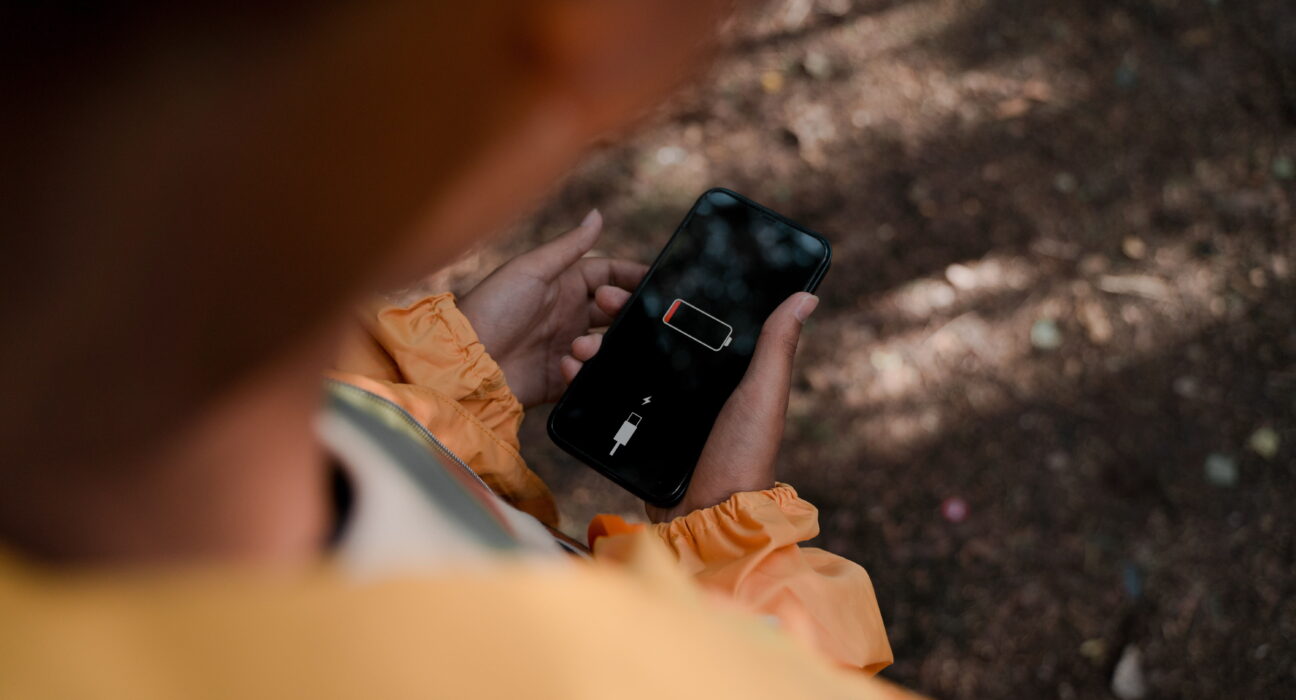
Updated your iPhone and now the battery barely makes it to dinner? iPhone battery drain iOS 18 is one of the most common complaints right after a major update, and it is rarely a sign your battery is dying.
Most of the time it is background work the phone is doing behind the scenes, a widget you forgot about, or a setting that quietly reset itself. This guide covers why it happens and the fixes that actually move the needle, starting with what to expect in the first few days and ending with the settings worth checking today.
How to Check What Is Actually Draining Your Battery
Before changing anything, open Settings, Battery, and scroll down to see usage by app over the last 24 hours or 10 days. This single screen answers most iPhone battery drain iOS 18 questions on its own, since it shows exactly which app is using power and whether that usage happened while you were actively using it or in the background. If one app stands out with high background activity, that is usually your fastest fix: update it, limit its background refresh, or delete it if you rarely use it anyway.
Which Apps Tend to Cause the Most Drain
Social media apps, navigation apps, and anything with constant notifications tend to top the list after any iOS update, since they refresh content and check for messages nonstop. Messaging apps that stay connected around the clock, like group chat and video call apps, are also common culprits behind iPhone battery drain iOS 18 reports, especially if background refresh is left on for all of them at once. Going through your battery usage list once a week and trimming permissions for the worst offenders keeps this from becoming a recurring problem.
Why Does iPhone Battery Drain Happen After iOS 18?
The first 24 to 48 hours are the worst. Right after you update, your phone reindexes photos, rebuilds Spotlight search data, and finishes installing files in the background. This is the single biggest driver of iPhone battery drain iOS 18 users notice in the first day or two, and it usually fades on its own by day three or four.
Apple Intelligence adds extra load. On the iPhone 15 Pro and newer, on-device machine learning models retrain themselves after an update to match new features. This runs automatically in the background and leans on the processor more than older iOS versions did.
Apps have not caught up yet. Some apps have not been optimized for the new system. They run rough, crash more, and quietly burn through battery until the developer ships a fix.
Fixes for iPhone Battery Drain iOS 18 That Actually Work
- Give it a few days first. If you updated less than 48 hours ago, some of what you are seeing is normal and temporary. Battery life on most phones returns to normal by day four or five as background tasks finish.
- Turn on Low Power Mode. Go to Settings, then Battery, and switch it on. It slows background activity and stretches your remaining charge, though it can slightly extend the post-update settling period.
- Check Battery Health first. Open Settings, Battery, Battery Health and Charging. Apple considers 80 percent or lower a sign it is time for a new battery, so this step rules out a hardware cause before you touch a single setting.
- Update your apps. Outdated apps are a common but overlooked cause of iPhone battery drain iOS 18 complaints. Open the App Store and update everything, since developers push compatibility fixes fast after a major release.
Settings Worth Turning Off Right Now
Disable Location Services for apps that do not need it. Go to Settings, Privacy and Security, Location Services, and set unused apps to “Never” or “While Using.” GPS running in the background is a steady, silent drain.
Turn off Background App Refresh. In Settings, General, Background App Refresh, either switch it off completely or limit it to the handful of apps you actually use daily.
Review Apple Intelligence features. Under Settings, Siri and Search, or Notifications, turn off personalized suggestions and proactive recommendations you do not rely on. These run quiet background processes that add up over a full day.
Remove or limit widgets. Weather, stocks, and news widgets refresh constantly on their own schedule. Users on the Apple support forums have traced real iPhone battery drain in iOS 18 cases directly to a single widget left active on the Home Screen.
Daily Habits That Stretch Your Battery Further
- Lower your screen brightness or turn on Auto-Brightness under Display and Text Size. Screen use is usually the single biggest battery expense on any iPhone.
- Use WiFi over cellular data whenever you can. Cellular radios work harder to maintain a signal, and that adds up over a full day of scrolling.
- Turn on Auto-Lock with a short timer so the screen is not staying lit longer than it needs to between uses.
- Close apps you are not using. This will not save huge amounts of power on its own, but combined with the other habits here, it keeps background activity from stacking up.
Common Mistakes That Make Battery Drain Worse
Charging overnight, every night. Keeping your phone at 100 percent for hours adds chemical stress to the battery over time. Charging between 40 and 80 percent most days is easier on long-term health.
Using cheap or uncertified chargers. Chargers without MFi certification do not regulate power properly, and that mismatch can wear down your battery faster than normal use.
Ignoring the reset button. If nothing above helps after a week, try Settings, General, Transfer or Reset iPhone, then Reset All Settings. It clears out corrupted preferences without deleting your photos or apps.
Assuming a full drain and recharge “resets” the battery. This is a myth for modern iPhones. The battery chip already recalibrates on its own, and deep discharges regularly are actually harder on the cell.
Blaming the update for everything. Not every case of iPhone battery drain iOS 18 users report is actually caused by the software. A battery that was already worn, a weak cell signal in your area, or a case that traps heat can all look identical to an update-related problem. Ruling out these other causes first saves you from chasing a fix that was never going to work.
Is Battery Drain Connected to Overheating?
Sometimes, yes. A phone running hot burns through charge faster than normal, since heat forces the system to slow down and work harder to compensate. If your phone feels warm on top of losing charge quickly, tackle the heat first, since cooling it down often clears up the drain as a side effect. We cover that separately in our full guide to iPhone overheating, which goes deeper into thermal-specific fixes that go beyond what is covered here for iPhone battery drain iOS 18 issues.
Final Thoughts
iPhone battery drain iOS 18 issues almost always trace back to background reindexing, Apple Intelligence features, or a setting that needs a second look. Give your phone a few days to settle in after any update, then work through the settings above one at a time. Most people see their battery return to normal, or better, within a week.
Frequently Asked Questions
Why is iOS 18.5 draining my battery?
A few apps are not yet updated for iOS 18.5. They run extra background processes and crash more often, which drains the battery faster than usual.
Does iOS 18.3 fix the battery drain issue?
Not fully. Many users point to Apple Intelligence as a factor, and results vary by model. Some phones improve while others do not, so checking your own Battery Health is more useful than waiting on a single update.
Does iOS 18 drain more battery than iOS 26?
Independent tests on an iPhone 16 Pro Max showed iOS 26 using far more battery over the same period than iOS 18, and running noticeably hotter too.
Why is my iPhone battery suddenly draining so fast?
Sudden drain usually points to a recent update, a background app misbehaving, a weak cell signal, or declining battery health. Check Battery Health, turn on Low Power Mode, and update your apps first.
How do I reset my iPhone’s battery stats?
Let it drain completely until it shuts off, leave it off for a few hours, then charge it to 100 percent in one go. This can correct an inaccurate percentage reading, though it will not restore lost battery capacity.


