




How to Change Wallpaper on an iPhone (2026)
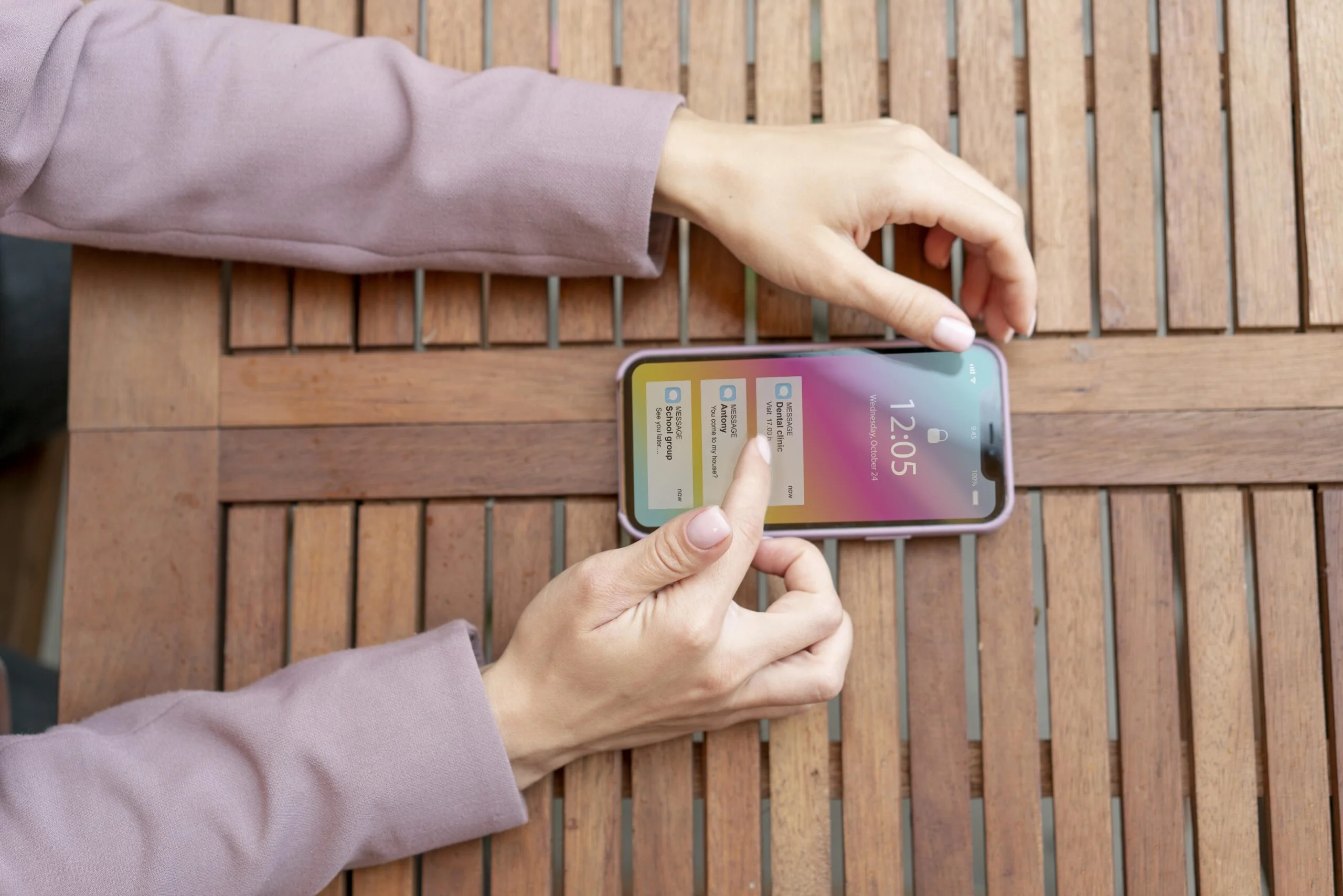
Your lock screen is the first thing you notice every time you pick up your phone, so it should look like something you actually like. Knowing how to change wallpaper on an iPhone takes less than a minute once you know where to tap.
You can use your own photos, a moving Live Photo, or one of Apple’s built-in designs. This guide walks through every method, including the Settings app, the Lock Screen shortcut, Photo Shuffle, and the newer 3D spatial style, plus a few fixes for common problems along the way.
Ways to Change Your iPhone Wallpaper
There is more than one way to set a new look for your phone, and the right pick depends on what you want day to day. Most people who search for how to change wallpaper on an iPhone just want the fastest fix, but it helps to see the options first so you do not have to redo the work later.
A single photo. Pull any picture from your camera roll and use it as is. This works well if you have one shot you love, like a family photo or a favorite vacation pic.
Photo Shuffle. Instead of one fixed image, your phone rotates through a set of pictures on a schedule you choose. Pick this if you get bored looking at the same photo.
Dynamic or Apple wallpapers. These are built-in designs that shift in color or brightness with the time of day. They suit anyone who wants a clean look without picking a personal photo.
3D Spatial wallpaper. On an iPhone 12 or later running iOS 26, you can turn certain photos into a depth-based wallpaper that shifts slightly as you tilt your phone.
Once you know which style fits you, the steps below show exactly how to change wallpaper on an iPhone using each method, starting with the one most people already know.
Change Wallpaper Through the Settings App
This is the most direct route for how to change wallpaper on iPhone, and it gives you the most control over cropping and layout.
- Open Settings and tap Wallpaper.
- Tap Add New Wallpaper.
- Choose Photos, People, Photo Shuffle, or Live Photo, or pick a built-in design like Weather, Emoji, or Color.
- Pinch and drag to frame the image the way you want it.
- Tap Add in the top right corner.
- Choose Set as Wallpaper Pair to use the same image on both screens, or tap Customize Home Screen to set them apart.
That is the full process for how to change wallpaper on iPhone from Settings, and it works the same way on almost every model still getting iOS updates.
Change Wallpaper Straight From the Lock Screen
If your phone is already unlocked in your hand, you do not need to open Settings at all.
- Touch and hold anywhere on the Lock Screen.
- Confirm with Face ID, Touch ID, or your passcode to open the wallpaper gallery.
- Swipe left or right to browse wallpapers you have already made.
- Tap the plus button to add a new one.
- Pick your photo or design, adjust it, then tap Add.
- Choose how you want to apply it, either paired or separate.
Many people prefer this shortcut because it saves a few taps compared to digging through Settings.
Set a Photo as Wallpaper From the Photos App
There is a third path for how to change wallpaper on iPhone that starts inside the Photos app itself, which is handy when you spot the right shot while scrolling through old pictures.
- Open Photos and find the picture you want to use.
- Tap the Share icon at the bottom left.
- Scroll down and tap Use as Wallpaper.
- Adjust the position and zoom, then tap Add.
- Choose Set as Wallpaper Pair or Customize Home Screen.
This is a handy shortcut if you are already looking through your photo library and spot something you want to use right away.
Turn a Photo Into a 3D Spatial Wallpaper
Newer iPhones can turn a normal photo into a wallpaper with real depth.
- In Settings, tap Wallpaper, then Add New Wallpaper.
- Tap Photos.
- Scroll to the Spatial Scene tab near the top.
- Pick a photo that Apple has flagged as eligible for this effect.
- Preview the depth effect, then tap Add.
Not every photo qualifies, since the feature needs enough depth information in the image to work properly. This step is the newest addition to how to change wallpaper on iPhone guides, so expect Apple to expand which photos are eligible in future updates.
Customize the Look of Your Lock Screen Wallpaper
After you set a wallpaper, you can fine-tune how it looks and what it shows.
- In Settings, tap Wallpaper, then Customize under the Lock Screen preview.
- Tap the clock to change its font and color.
- Tap the boxes below the clock to add widgets like Weather or Calendar.
- Swipe left or right to try filters such as black and white.
- Try the Depth Effect option to make a subject appear to sit in front of the clock.
- Tap Done once everything looks right.
The Depth Effect only shows up when there are no widgets active on that Lock Screen, so remove any widgets first if the option seems to be missing.
Set Up Photo Shuffle So Wallpapers Change on Their Own
Photo Shuffle is worth setting up if you like variety without picking a new image every day.
- Go to Settings, tap Wallpaper, then Add New Wallpaper.
- Select Photo Shuffle from the row of options.
- Pick a theme such as People, Pets, Nature, or Cities, or choose Selected Photos to build your own set.
- Tap Shuffle Frequency and choose On Tap, On Lock, Hourly, or Daily.
- Tap Done to save it.
This is a simple way to keep your screen feeling fresh without any extra effort after setup.
Delete Wallpapers You No Longer Want
Old wallpapers can pile up in your gallery over time, and clearing them out is quick.
- Touch and hold the Lock Screen to open the gallery.
- Swipe through until you find the one you want gone.
- Swipe up on it and tap the trash icon that appears.
- Confirm the deletion.
Cleaning up old designs makes it easier to find the wallpaper you actually want to switch back to later.
Why Bother Changing Your Wallpaper at All
A new wallpaper is one of the fastest ways to make a phone feel less stale without spending any money. Some people rotate wallpapers with the seasons, others just want a change after staring at the same lock screen for months.
A darker image can also cut down on glare and make a battery bar easier to read at a glance, while a lighter background can make app icons stand out more clearly on the home screen. None of this is complicated once you understand how to change wallpaper on an iPhone, since every method above takes well under a minute from start to finish.
Final Thoughts
Now you know how to change wallpaper on iPhone using whichever method fits your habits, whether that is a quick edit from the Lock Screen, a fresh pick from Photos, Photo Shuffle for variety, or the newer 3D spatial style. None of these steps require a third-party app, and all of them can be undone in a few taps if you change your mind. Try a couple of approaches and keep the one that feels right every time you glance at your screen, and revisit this guide any time Apple adds a new wallpaper style with a future iOS update.
Frequently Asked Questions
Can I use a video as my wallpaper?
Standard video files cannot be set as wallpaper. iOS only supports Live Photos, which capture a few seconds of motion, so convert a clip to a Live Photo first if you want that moving effect.
Why is the Depth Effect grayed out?
It only works when your Lock Screen has no widgets turned on. Remove any widgets, and the option should become available again.
Can I set different wallpapers for my Lock Screen and Home Screen?
Yes. Choose Customize Home Screen instead of Set as Wallpaper Pair when you finish editing a new wallpaper.
Does Photo Shuffle use more battery?
The difference is small enough that most people never notice it. It is fine to leave running all day.
How many wallpapers can I keep saved?
There is no fixed limit, though deleting ones you no longer use keeps the gallery easier to scroll through.
Do these steps work on every iPhone model?
Most of the steps for how to change wallpaper on an iPhone apply from iOS 16 onward. Older software supports the basic Settings method, but Photo Shuffle, Depth Effect, and 3D Spatial wallpapers need newer versions.
The idea of a customizable phone background traces back to the earliest graphical interfaces, and today’s wallpaper options on iPhone are a modern extension of that same concept.


