




How to Force Restart Your iPhone (2026 Guide)
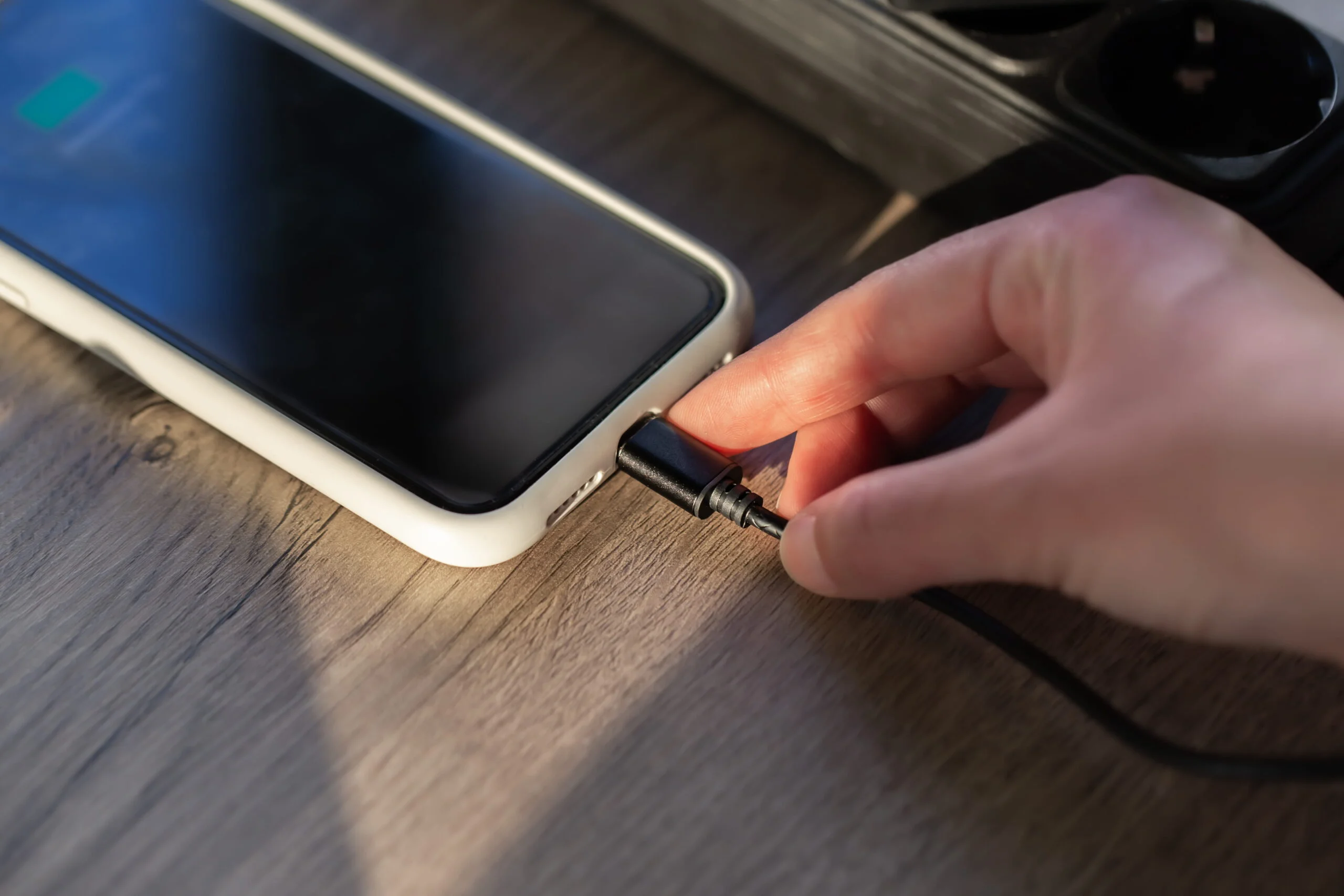
Is your iPhone frozen and not responding no matter how many times you tap the screen? This is one of the most common iPhone problems, and a force restart is usually the fastest fix. It works when the screen is stuck, an app has crashed, or the phone will not turn off.
In this guide, you will learn the exact steps to force restart your iPhone, whether you have the newest model or an older one. You will also learn what to do if it does not work the first time.
What a Force Restart Actually Does
A force restart your iphone and reboots your iPhone using only the physical buttons, without using the on-screen slider. It does not delete anything. Your photos, messages, and apps stay exactly where they were. When you force restart your iPhone, you are just giving the software a hard reboot, the same way turning a stuck computer off and on again clears a glitch.
This is different from a regular restart, which needs the screen to respond to your touch. If the screen is frozen, a regular restart is not an option, and that is when this method matters most.
Force Restart vs. Regular Restart vs. Factory Reset
People often mix these three up, so here is the quick version:
- Regular restart: You slide to power off, wait, then press the side button. Only works if the screen still responds.
- Force restart: Button combination only, no screen interaction needed. Fixes freezes without touching your data.
- Factory reset: Erases everything and returns the phone to its original settings. Only use this if you are selling the phone or nothing else has worked.
If your iPhone is frozen, always try to force restart it before considering anything more drastic. It fixes the vast majority of freezes on its own.
How to Force Restart an iPhone 8 or Newer (Including iPhone 14, 15, and 16)
This method covers iPhone 8 through the current lineup, plus the second-generation iPhone SE and later.
- Press and quickly release the volume up button.
- Press and quickly release the volume down button.
- Press and hold the side button.
- Keep holding it even after the screen goes black.
- Wait for the Apple logo to appear.
- Release the side button once the logo shows up.
The whole process takes about ten to fifteen seconds. Your phone may vibrate once right before the logo appears; that is normal. If you release the side button too early, nothing happens and you will need to start over from step one.
How to Force Restart an iPhone 7 or 7 Plus
The iPhone 7 series uses a different combination since the home button does not click the way older models do.
- Press and hold the volume down button.
- At the same time, press and hold the side button.
- Keep both buttons held for about ten seconds.
- Wait for the Apple logo to appear.
- Release both buttons.
The screen will stay black for a few seconds before the logo shows up, so do not let go early just because nothing seems to be happening.
How to Force Restart an iPhone 6s or Earlier
Older models, including the iPhone 6s and the original iPhone SE, use the home button instead of the volume buttons.
- Press and hold the Home button.
- At the same time, press and hold the side (or top) button.
- Hold both for about ten seconds.
- Wait for the Apple logo to appear.
- Release both buttons.
The home button is the round button below the screen. On some of these older devices, the side button is labeled the sleep button instead; it is the same button either way.
How to Force Restart an iPhone With Broken Buttons
If your physical buttons do not work, you cannot use the steps above. The fix is to set up AssistiveTouch before you need it, since it puts a virtual button on your screen.
- Open Settings and go to Accessibility.
- Tap Touch, then turn on AssistiveTouch.
- Tap the floating button that appears, then tap Device.
- Press and hold the Lock Screen option until a slider appears.
- Slide to power off and wait thirty seconds.
- Plug the phone into a charger to turn it back on.
This only works if your screen still responds to touch. If both the screen and the buttons have failed, you will need to visit an Apple Store or an authorized repair shop.
What to Do If the Force Restart Does Not Work
Sometimes a force restart does not fix the problem, and you might see a black screen or the Apple logo flashing without finishing the boot. If that happens:
- Connect your iPhone to a computer with a charging cable.
- Open Finder on a Mac, or iTunes on Windows.
- Try the force restart steps again while it is connected.
- Your computer should detect the iPhone in recovery mode.
- Follow the on-screen prompts to restore or update it.
If none of this works, the issue is likely hardware-related, and a trip to Apple Support or an authorized repair center is the next step.
Quick Check After Restarting
Once your iPhone restarts, take a minute to confirm everything is working. Open a few apps to make sure they load without freezing. Test the touch screen with a quick swipe through your home screen. Check that Wi-Fi connects normally. If problems continue, back up your data to iCloud and check for a pending iOS update, since outdated software is a common cause of repeated freezing.
Final Thoughts
A frozen iPhone is annoying, but it is rarely serious. Knowing the right button combination for your specific model means you can fix it yourself in under fifteen seconds, without a trip to the store. If it ever stops working, recovery mode and Apple Support are there as a backup.
Frequently Asked Questions
Will a force restart delete my photos or apps?
No. It only reboots the system. Your photos, apps, and messages stay exactly where they were before the restart.
How often can I force restart my iPhone safely?
As often as you need to. It does not damage the hardware or software, so there is no real limit.
Why is my iPhone stuck on the Apple logo after a restart?
This usually means the startup process did not finish. Connect the phone to a computer and try recovery mode, or restore it through Finder or iTunes.
Does force restart work if the screen is completely black?
Yes. The button steps do not require the screen to respond at all. Just follow them in order and wait for the Apple logo.
What is the real difference between a hard reset and a force restart?
A force restart only reboots the phone. A factory reset erases everything and restores the original settings. Always try the restart first.


