




iPhone 16e Easy Step Guide: How to Set Up iPhone 16e
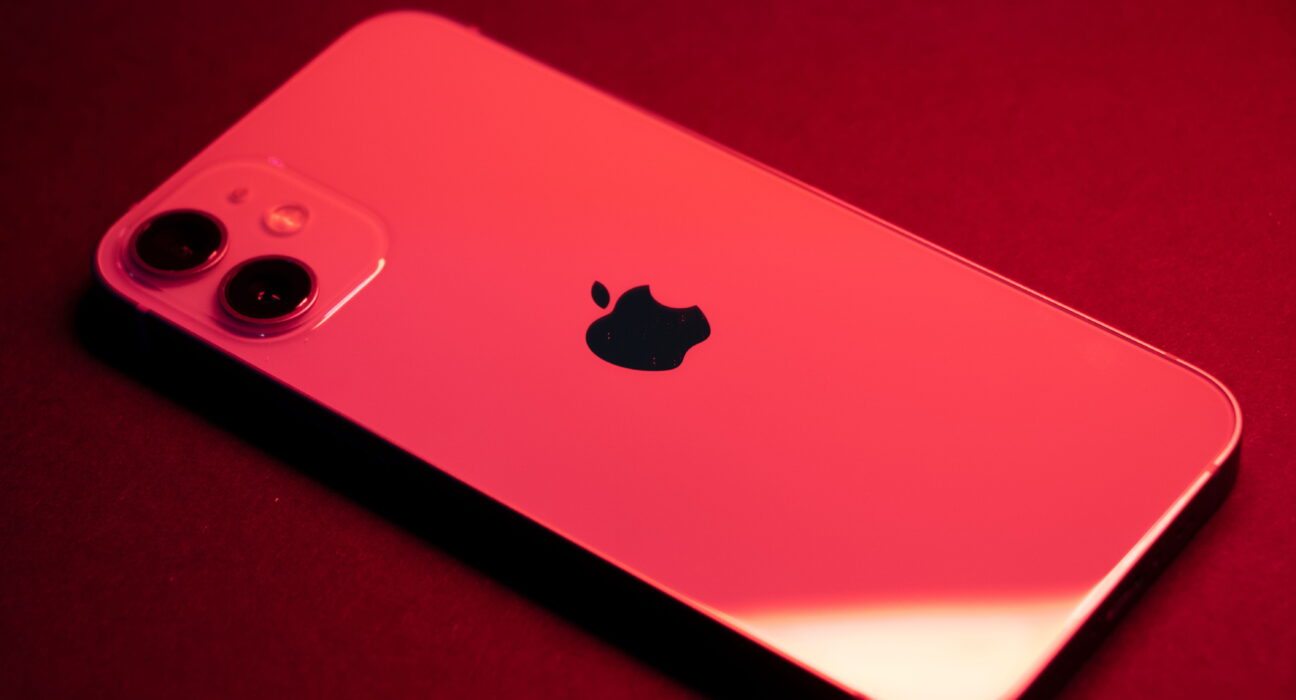
You bought a shiny new iPhone 16e today. This great phone gives you top features for less cash. You want to learn how to set up your new phone. Setting up a new device can feel hard at times. We will teach you how to transfer your old data.
You will also learn how to set up Face ID. Anyone who wants a simple setup guide should read this. After reading this guide, you can use your phone easily. Check out Apple online for extra product details. You will enjoy using your brand-new mobile phone every single day.
Overview of the iPhone 16e Device
The Apple iPhone 16e is Apple’s budget-friendly entry into the iPhone 16 family. Launched in February 2025, the phone acts as the spiritual successor to the iPhone SE line, trading the dated home button aesthetic for a modern, full-screen design.
The phone serves as a highly capable, essential gateway into the modern iOS ecosystem.
Key Specifications
- Display: 6.1-inch Super Retina XDR OLED screen with a standard 60Hz refresh rate and a notch.
- Processor: A18 chip paired with 8GB RAM, making it fully compatible with Apple Intelligence.
- Camera: A single, clean 48MP Fusion main camera that utilizes a sensor crop to achieve a 2x optical-quality zoom.
- Battery: A robust 4,005 mAh battery combined with Apple’s highly efficient C1 modem, offering incredible multi-day battery life.
- Durability and Build: Matte glass back, matte aluminum frame, Action Button, and IP68 water resistance.
Strategic Compromises
To hit its lower price point, Apple removed several hardware mainstays found on higher-tier models:
- No MagSafe wireless charging; standard Qi wireless charging only, limited to seven point five watts.
- No Camera Control Button or Ultra Wide or Telephoto physical lenses.
- No Dynamic Island or ProMotion 120Hz smooth-scrolling display screen.
- No Ultra Wideband chip, so it lacks Precision Finding for AirTags.
Local Pricing Summary
The retail value varies depending on the import type and market availability. Official and commercial PTA-approved prices remain quite high due to import taxes.
| Variant | Global MSRP | Official PTA Price Range | JV Box Pack Non-Active |
| 128 GB | $599 | PKR 229,999 to PKR 289,999 | PKR 75,000 to PKR 85,000 |
| 256 GB | £699 | Around PKR 299,999 | Varies |
| 512 GB | £899 | Around PKR 329,999 | Varies |
Choosing Your Phone Data Transfer Method
When setting up your device, you must choose your path.
- Transferring using Quick Start requires both phones to be near each other. You must keep both devices plugged into power outlets. This method moves all your personal files over the air.
- Transferring using iCloud backup data needs a strong Wi-Fi network. You save your files to the cloud storage first. Then you pull those files down to your new phone.
- Transferring using a computer needs a secure USB cable connection. You plug the device straight into your computer port safely. This method works great if your internet speed is slow.
Which Should You Choose?
You should pick Quick Start if your old phone works. It moves all your apps without any hard steps today.
Choose the cloud backup way if your old phone broke. You can get your old files back using your account.
Use the computer method if your home internet is slow. Plugging in with a cable keeps the file transfer steady.
Main Setup Instructions for Users
You can prepare your mobile phone using three clear methods.
How to set up iPhone 16e using Quick Start
- Turn on your new iPhone 16e using the power button. Press and hold the side button until the logo appears.
- Place your old phone right next to your new device. Look for the startup screen on your old phone display.
- Tap the Continue button on your old phone screen now. An animation will appear on your new phone screen soon.
- Scan the moving circle image with your old phone camera. Enter your old device passcode on the new screen now.
- Set up Face ID by scanning your face in the circle. Follow the simple steps shown on the bright display screen.
- Choose the option to transfer data directly from your device. Keep both phones close together until the full process stops.
How to set up iPhone 16e using an iCloud Backup
- Turn on your new iPhone 16e using the power button. Select your preferred language and country from the big list.
- Connect your device to a safe and fast Wi-Fi network. Type your home internet password on the screen very carefully.
- Tap the Set up manually option at the bottom of the screen. Choose the option to restore from an iCloud backup now.
- Sign in to your personal Apple ID account with your password. Type the two-factor safety code sent to your email.
- Pick the newest backup file from your old device list. Wait for the restore bar to finish filling up completely.
Related Process: How to Restore Your Data
After setting up your phone, you must verify your files.
- Check that all your main apps have downloaded to the device. Look at your home screen layout to see their progress.
- Open the general settings menu on your new phone screen. Tap your name at the top to check your account.
- Turn on the green toggles for your cloud sync choices. This step brings back all your contacts and private notes.
- Open the App Store to download missing third-party tools. Log back into your private accounts one by one now.
Managing Your Battery and System Settings
Proper care helps your smartphone run fast every day.
- Keep your phone updated to the latest software version always. Open your settings app and click on the software update menu. Updates fix small bugs and make your battery last longer.
- Turn on auto brightness to save total battery power daily. Your screen adjusts light levels based on your current room. This keeps your display clear while preserving your battery life.
- Clean your charging port using a soft, dry cloth weekly. Dust inside the port can stop your cable from charging. Safe charging keeps your battery healthy for many long years.
Adjusting Visual Display Options
You can adjust your screen settings to match your eyes. Open the display menu inside your main settings app icon. You can turn on dark mode for comfortable night reading.
Protecting Your Device and Personal Information
Safety matters when you store private data on your phone.
- Set a strong six-digit passcode for your lock screen. Do not share your passcode with people you do not know. A safe passcode keeps your personal files protected at all times.
- Enable Find My Phone inside your cloud security settings page. This tool helps you locate your phone if you lose it. You can erase your data remotely if the phone gets stolen.
- Avoid clicking strange links sent in unexpected text messages today. Only download mobile apps from the official Apple App Store. Safe browsing protects your account credentials from bad online scams.
Understanding the Action Button Configuration
Your new phone comes with a physical side button.
- Open your Settings app icon on the main display screen.
- Scroll down until you find the Action Button option.
- Swipe left or right to pick your favorite quick tool.
- Select the flashlight or camera tool for instant one-click access.
Checking Your Storage and Memory Usage
Checking your internal space keeps your system running very smoothly.
- Tap the Settings app icon on your main home screen.
- Tap the General option and select iPhone Storage.
- View the colorful bar showing your total used system memory.
- Remove large unused files to keep your phone super fast.
Connecting Wireless Accessories to Your Device
Connecting headphones or smartwatches takes just a few seconds.
- Turn on your wireless accessory and put it in pairing mode.
- Open Settings on your phone and tap the Bluetooth option.
- Look for your accessory name in the lower device list.
- Tap the device name to pair them together right now.
Conclusion
You have finished setting up your new iPhone 16e. You transferred your data and secured your device very easily. Now you can enjoy all the cool features right away. Check out our other tech guides to learn more tricks. Have fun exploring your fast new phone with your friends. You made a wonderful choice for your smartphone needs.
Frequently Asked Questions
Why is the iPhone 16e so cheap?
Apple removed extra camera lenses to save total manufacturing costs. This lower price helps budget buyers purchase powerful modern software. Every user gets top performance without paying huge extra costs.
Is the iPhone 16e any good?
Yes, this phone runs fast with the new A18 processor. It features a great screen along with long battery life. You can play games and take sharp photos every day.
What exactly is an iPhone 16e?
It is a budget phone in the main iPhone 16 series. It replaces older budget models with new edge-to-edge screens. Users get great features inside a very modern phone body.
Why is the iPhone 16e called E?
The letter E stands for essential features for all users. It offers core performance without extra high-end camera hardware. You get everything you need for simple daily phone tasks.
Which iPhone is No. 1?
The top model is currently the iPhone 16 Pro Max. It includes extra camera lenses and faster, smoother screen refresh rates. It costs more money than the simpler budget phone models.


