Printing from your iPhone can save time and effort every single day. You might need to know how to print text messages from an iPhone for records. Maybe you want to know how to print photos from an iPhone for memories.
This guide helps anyone learn how to print from iPhone easily. Students, workers, and parents can all benefit from this knowledge today. After reading, you will know multiple ways to print documents. You will understand which method works best for your specific situation. Let us explore simple solutions that work with any printer type.
Which Printing Method Should You Choose?
Before you start printing, pick the method that fits your needs:
AirPrint (Built-in Apple Feature)
- This works if your printer supports AirPrint technology right out of the box. You can print messages from your iPhone without installing extra apps on your device. The setup takes only a few minutes to complete successfully today. No cables or complicated steps are needed for this wireless solution.
Cloud Printing Services
- These work with any printer, even old ones without AirPrint features. You can print out text messages from your iPhone from anywhere around the world. Friends and family can also print to your shared printers easily. Perfect for businesses that need flexible printing options for remote workers.
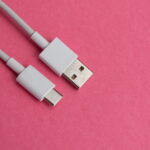
USB Cable Connection
- This option requires a special adapter and a third-party app. Best for people who only have one old printer available. Takes more setup time but works when wireless options fail. Not recommended unless you have no other choice for printing.
Which should you choose? If your printer is new, use AirPrint for the easiest experience. If you need remote printing or have old printers, try cloud services. Save USB connections as your last option when nothing else works.
How to Print from iPhone Using AirPrint
This is the best way to know how to print from iPhone, if your printer is AirPrint-enabled:
- Start your printer and connect it to your wifi network.
- Make certain your iPhone is on the same WiFi network today.
- Open the photo or message you wish to print.
- Tap the share icon that looks like a box coming out of another box.
- Swipe down the menu, and then tap the button for Print.
- Choose your printer from the list of AirPrint printers.
- Select your quantities and customize with full-color.
- Click Print, which is located in the upper-right, to begin printing.
Your document should print within a few seconds or minutes. If the printer does not appear, check your WiFi connection again. Make sure both devices are on the same network all the time. Some older printer models need a firmware update for AirPrint support.
How to Print from iPhone Using Cloud Services
Cloud printing lets you print pictures from an iPhone to any printer:
- Download a cloud printing app like ezeep Blue from the App Store.
- Create a free account and set up your organization name.
- Install the connector software on your computer at home or work.
- Add your printer to the cloud service through the connector.
- Assign printer access to yourself or share it with other people.
- Open the cloud printing app on your iPhone to get started.
- Tap the Print button located in the bottom right corner.
- Select your printer from All My Printers or WiFi options.
- Choose the document or photo you want to print now.
- Adjust settings like color copies and paper size as needed.
- Tap Print, and your document sends to the printer immediately.
This method works even when you are away from home completely. Your printer just needs to stay connected to the internet always. You can print from coffee shops, airports, or anywhere with a connection. Family members can also print to their home printer this way.
How to Print Directly from iPhone Apps
Some apps let you print without leaving the app you use:
- Open the app that contains your document or photo file.
- Find the Share button, which appears in most modern apps.
- Look for Print with your cloud service in the list.
- Tap that option, and your document opens in print preview.
- Confirm your settings and tap Print to finish the job.
If the Share button does not show the print option, try this:
a. Open your document in the app like Photos or Files. b. Tap the small arrow in the bottom right screen corner. c. Scroll down and select the Print option from the menu. d. Zoom into print preview using two fingers on the screen. e. Tap the share icon in the upper-right corner. f. Select your cloud printing app from the available sharing options. g. Follow the steps to complete your print job successfully today.
How to Print Text Messages from iPhone
Printing text messages requires taking screenshots of your conversation thread first:
- Open up the Messages app and locate the conversation you want.
- Press and hold the side button and volume up button at the same time.
- Your screen flickers, and a screenshot is saved in your Photos.
- Repeat this process on every message screen that you wish to have preserved.
- Go to the Photos app and pick all of the screenshots that you have captured.
- Tap the Share button and select Print from the menu that appears.
- Choose your printer, and make changes if necessary to settings like regular printing.
- Press Print to print your messages.
Some third-party apps can also help print text messages from an iPhone more easily. These apps organize your messages into a printable format automatically. Check the App Store for message printing apps with good reviews.
Conclusion
You now know several ways to print from an iPhone successfully. AirPrint works great for newer printers with built-in wireless support. Cloud services help you print to any printer from anywhere today. Remember to keep your devices on the same network always. Start with the easiest method and try others if needed. Check out guides about scanning documents to an iPhone for more help. Happy printing, and enjoy your new skill for work and play.
FAQ
Can I Print From My iPhone Without A WiFi Connection?
Yes, you can use a USB cable with an adapter and apps. Bluetooth printing also works if your printer supports this wireless feature. Cloud services need the internet, but work with mobile data connections.
Why Isn’t My Printer In The List?
Please make sure both your phone and TV are connected to the same WiFi network. Turn your printer and iPhone off, then on again to reset the connection between them. 2: update printer firmware, make sure that it is not an old one.
How Do I Print High-Quality Photos From an iPhone?
Change your print settings to it is on the maximum quality setting you have. Try photo paper, not the standard stuff, for better results. Ensure the file of your photo is high resolution before printing.
How Can I Print More Than One Page At A Time From My iPhone?
Yes, choose multiple photos or documents and then tap share. Click on Print, and alter the copies as desired. Nearly all printers can do batch printing without a hitch.
Do I Need Special Apps To Print From iPhone?
AirPrint needs no apps as it is built into the iPhone. Cloud services require their specific app from the App Store. USB printing always needs a third-party app to work.